Enamel Mockup

What's inside
- Applications Photoshop
- File Types PSD
- License Free (see author's terms)
- Author Graphics Egg
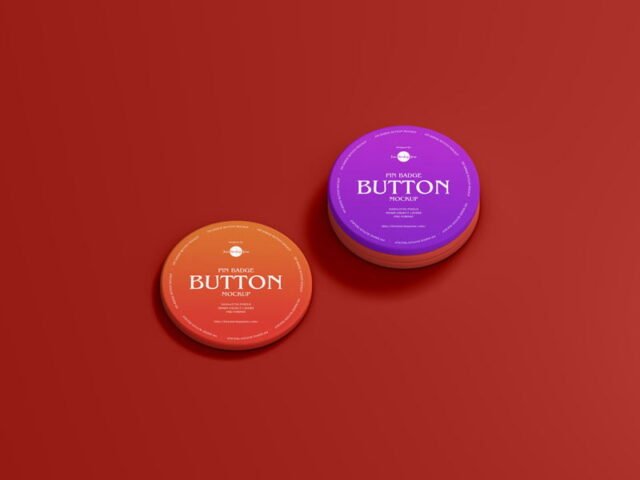
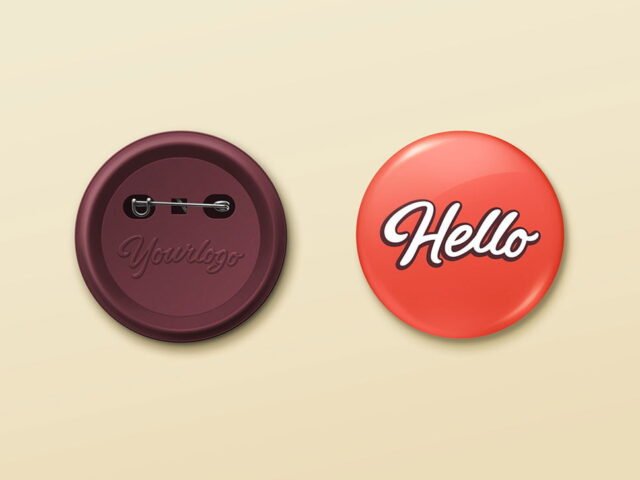
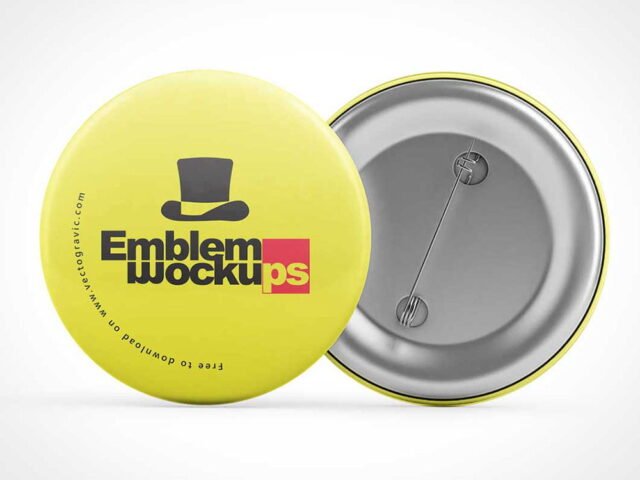
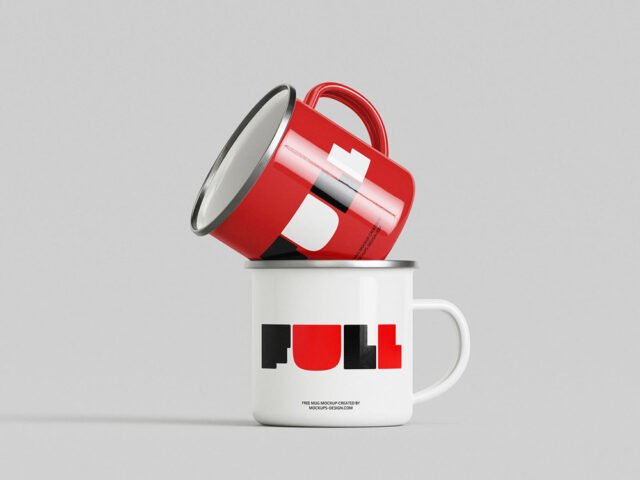
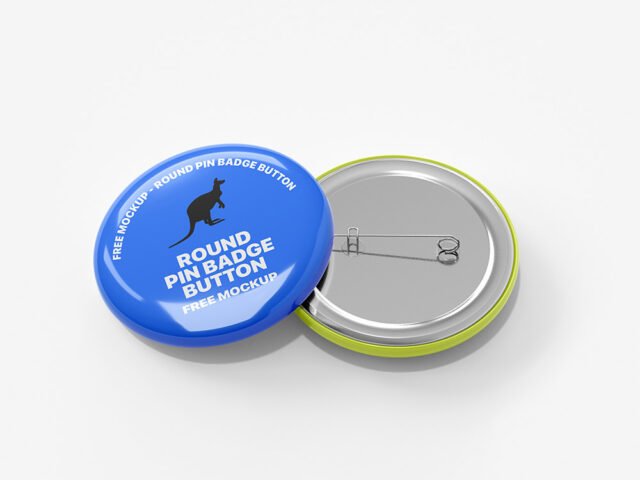
Show a campaign pin the way it will actually look: on an enamel mockup.
Illustrators and merch sellers tend to get the most out of files like this. Quick tip: keep your artwork simple. Small objects shrink details quickly, so a bold mark reads better than fine lines.
Small branded items are often the part of an identity that clients remember, so it’s worth showing them properly.
Credit goes to Graphics Egg. We link to their download page rather than re-uploading the file, so check their terms there before commercial use.
What you can edit in this Enamel Mockup
Main things you can change in Photoshop:
- Logo or artwork, placed through the smart object
- Object colour, where included
- Background colour
How to edit this Enamel Mockup in Photoshop
- Export your logo or artwork as a PNG with transparency.
- Open the file in Photoshop and double-click the smart object thumbnail in the Layers panel.
- Paste your design, resize it to fill the area, then save (Ctrl/Cmd + S) and close that tab.
- Adjust the shadow so the object sits on the surface.
- Export a full-size image for your portfolio and a smaller one for social media.
Use a PNG with transparency for logos so the material around them keeps its texture.
Best uses for this Enamel Mockup
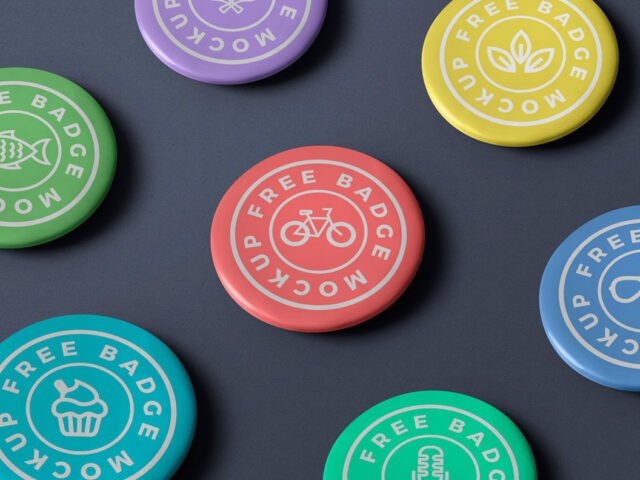
- Make two or three colour versions of a button badge and let the client pick.
- Show an enamel pin design to a client before it goes to print or production.
- Present a campaign pin in a client proposal or brand guide.
Quick notes on this mockup
- Made by Graphics Egg. The download size and format are listed on their page.
- Built for Adobe Photoshop. A recent CC version handles the smart objects best.
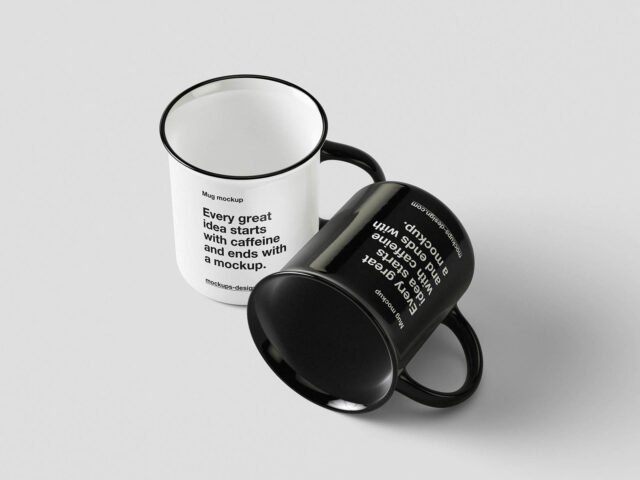
- The preview shows the angle, background and lighting you’ll get.
- Check the licence on the author’s page. Personal and commercial terms differ from file to file.
Browse more free pin button badge mockups on Artistic Orbit, with new files added every day.
Questions about this mockup
What licence does it come with?
That depends on the author's terms. The download page lists what is allowed; when in doubt, ask the author directly.
How do I add my design?
Open the file in Photoshop, double-click the smart object thumbnail, paste or place your artwork in the new tab, save it (Ctrl/Cmd + S) and close. The main file updates on its own.
Do I need Photoshop?
Yes. This is a PSD mockup built with smart objects, so you edit it in Adobe Photoshop. Any recent CC version works.
Can I change the background?
Most object mockups have a background colour or image layer at the bottom of the stack that you can swap.