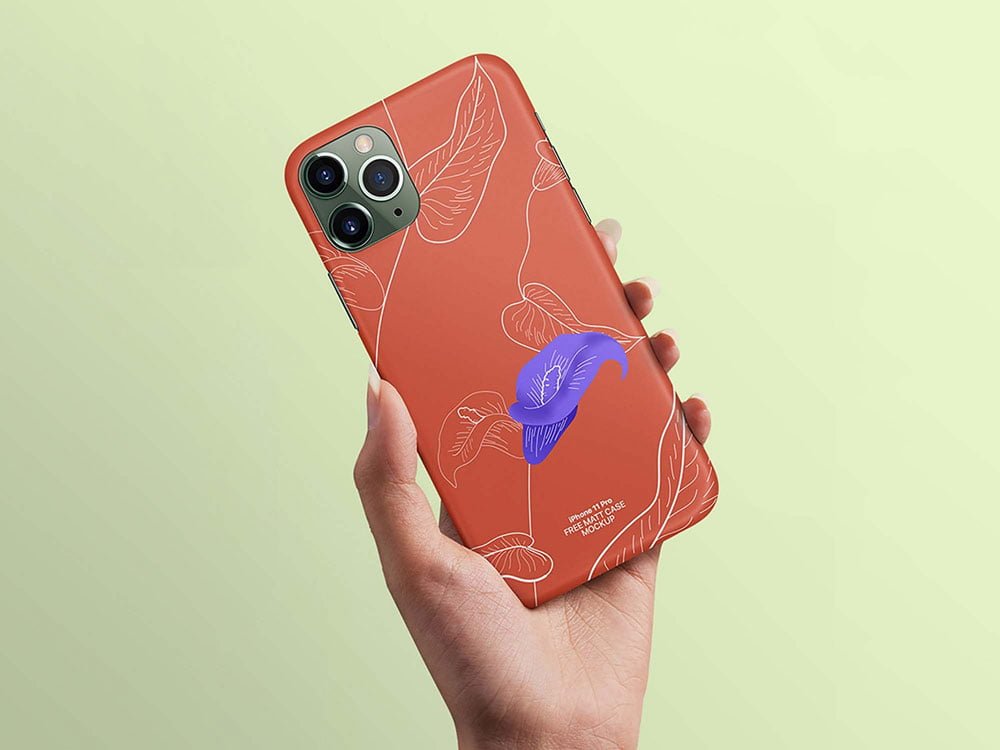
iPhone 11 Pro Case Mockup
What's inside
- Applications Photoshop
- File Types PSD
- License Free (see author's terms)
- Author Pixpine
If you’re presenting an app screen, this iPhone 11 Pro case mockup makes the idea feel real before anything is produced.
UI freelancers and startup teams tend to get the most out of files like this. For recent iPhones, keep important UI clear of the notch or Dynamic Island area.
A screen inside a real device frame explains a product faster than a raw screenshot, which is why it shows up on so many landing pages and app store listings.
Pixpine created this one and hosts the download on their own site, so you always get the latest version straight from the source.
iPhone 11 Pro Case Mockup: editable parts
Main things you can change in Photoshop:
- Screen design, placed through the smart object
- Background colour
- Screen glare and reflection layers
- Device colour, where the file includes it
Editing the iPhone 11 Pro Case Mockup, step by step
- Export your screen design as a PNG at the exact size of the screen smart object.
- Open the PSD in Photoshop and find the smart object layer, usually named “Your Design” or “Place Here”.
- Paste your design, resize it to fill the area, then save (Ctrl/Cmd + S) and close that tab.
- Hide the reflection layer for a flatter look.
- Export a full-size image for your portfolio and a smaller one for social media.
Another tip: for app store or portfolio images, crop tight around the device so the screen fills most of the frame.
Ways to use this iPhone 11 Pro Case Mockup
- Share an Instagram story design on Instagram, Behance or Dribbble with a real-looking preview.
- Show a website on mobile to a client before it goes to print or production.
- Present an app screen in a client proposal or brand guide.
Quick notes on this mockup
- Made by Pixpine. The download size and format are listed on their page.
- Some free mockups ask for credit when you post them. A short line in your caption is enough.
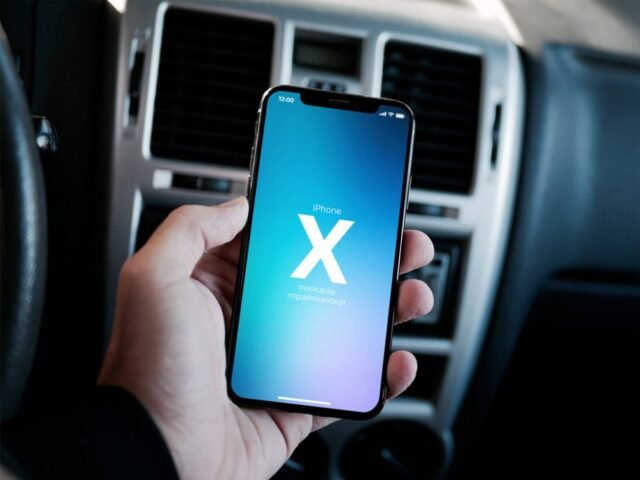
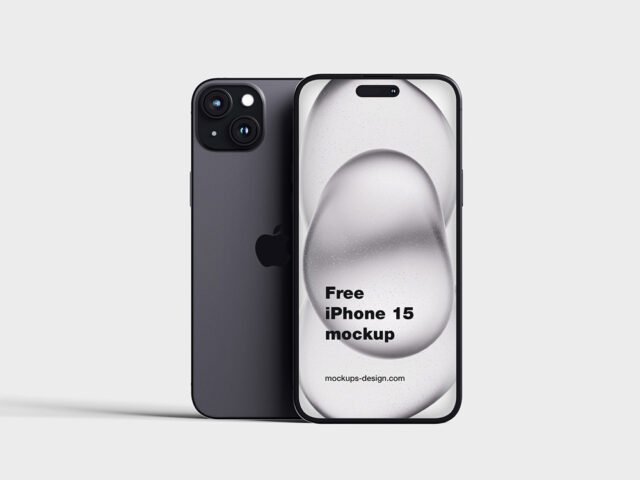
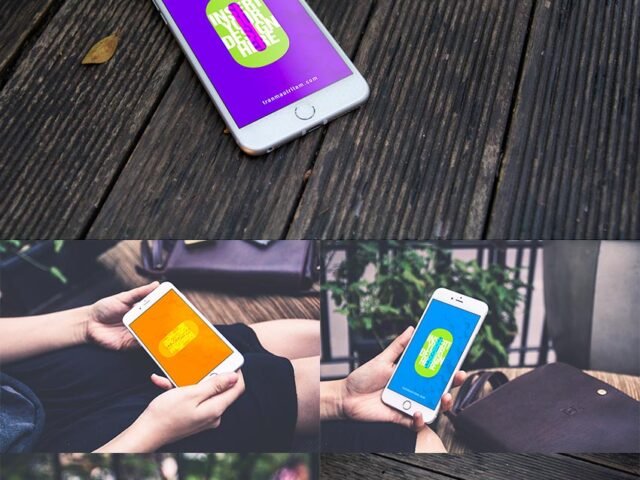
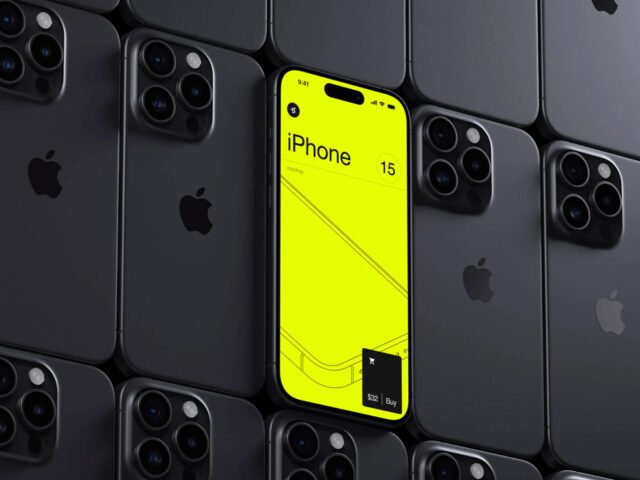
- The preview shows the angle, background and lighting you’ll get.
- Check the smart object size before you design, so your artwork fits without stretching.
Browse more free iphone mockups on Artistic Orbit, with new files added every day.
Questions about this mockup
Can I use this iPhone mockup for client work?
That depends on the author's terms. The download page lists what is allowed; when in doubt, ask the author directly.
How do I put my artwork on the iPhone?
Find the smart object layer (it has a small icon on its thumbnail), double-click it, place your design, then save and close that tab.
Which Photoshop version do I need?
A recent Photoshop CC version is best. Older versions can open the file but sometimes have trouble with smart objects and effects.
Can I remove the screen reflection?
Usually yes. Reflections and glare are normally a separate layer that you can hide or lower in opacity.