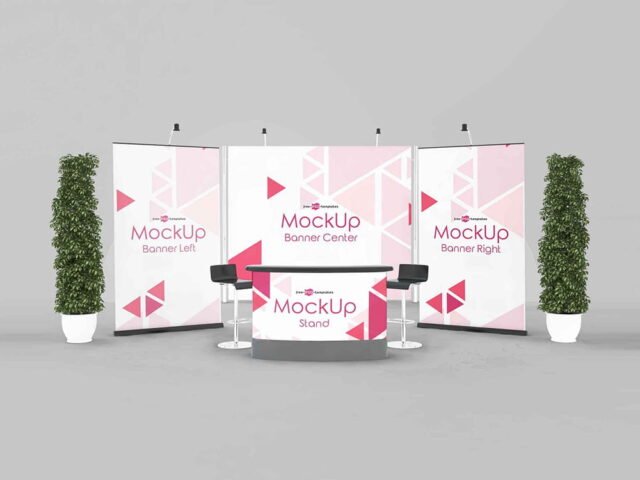
Mural Mockup

What's inside
- Applications Photoshop
- File Types PSD
- License Free (see author's terms)
- Author Mr.Mockup
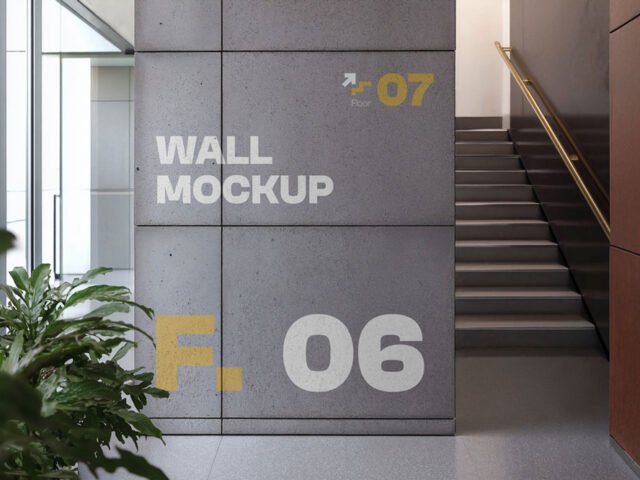
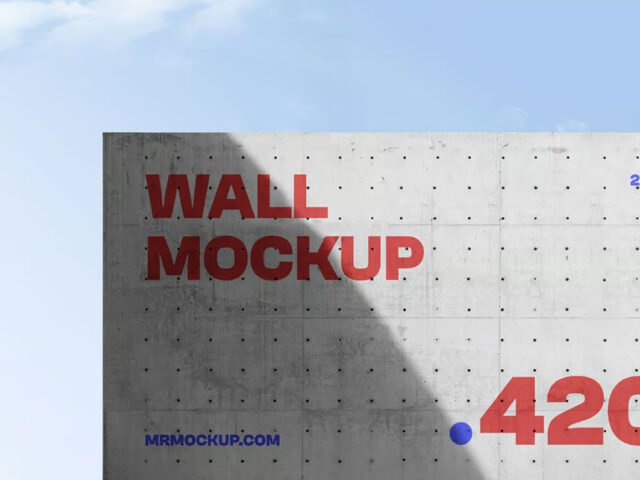
A mural mockup, made for presenting an exhibition panel. Drop in your artwork and the lighting and shadows stay as they are.
It’s a handy file for interior designers and event teams. A small tip: night or backlit scenes usually have a glow layer. Push it up for lightboxes, down for printed paper.
It’s also handy for student and portfolio work, when you want to show a campaign that never went live.
Mr.Mockup created this one and hosts the download on their own site, so you always get the latest version straight from the source.
What you can edit in this Mural Mockup
Main things you can change in Photoshop:
- Ad artwork, placed through the smart object
- Lighting and shadow layers
- Brightness to match the scene
Add your design to the Mural Mockup
- Check the smart object’s ratio first, then build the ad to match it.
- Open the PSD in Photoshop and find the smart object layer, usually named “Your Design” or “Place Here”.
- Paste your design, resize it to fill the area, then save (Ctrl/Cmd + S) and close that tab.
- Match the ad’s brightness to the scene with the lighting layers.
- Export with File › Export › Export As: JPG for sharing, PNG for the web.
Another tip: match the brightness of your design to the scene; a very bright graphic in a shaded spot looks pasted in.
Where the Mural Mockup works best
- Make two or three colour versions of a mural and let the client pick.
- Show a poster wall on your online shop or product page.
- Share an office wall graphic on Instagram, Behance or Dribbble with a real-looking preview.
Before you download
- Made by Mr.Mockup. The download size and format are listed on their page.
- The preview shows the angle, background and lighting you’ll get.
- Built for Adobe Photoshop. A recent CC version handles the smart objects best.
More free wall mockups are listed below, each linking to the original author.
Questions about this mockup
Can I use this wall mockup for client work?
That depends on the author's terms. The download page lists what is allowed; when in doubt, ask the author directly.
How do I add my design?
Open the file in Photoshop, double-click the smart object thumbnail, paste or place your artwork in the new tab, save it (Ctrl/Cmd + S) and close. The main file updates on its own.
Do I need Photoshop?
Yes. This is a PSD mockup built with smart objects, so you edit it in Adobe Photoshop. Any recent CC version works.
Can I change the surroundings?
Usually only lighting and shadows are adjustable. The street, sky or building are part of the photo.
Why does the download open another website?
We list free files from designers around the web and link to the original page, so Mr.Mockup gets the visit and you get the file exactly as they published it.