PSD Restaurant Menu Mockup
What's inside
- Applications Photoshop
- File Types PSD
- License Free (see author's terms)
- Author GraphicPear
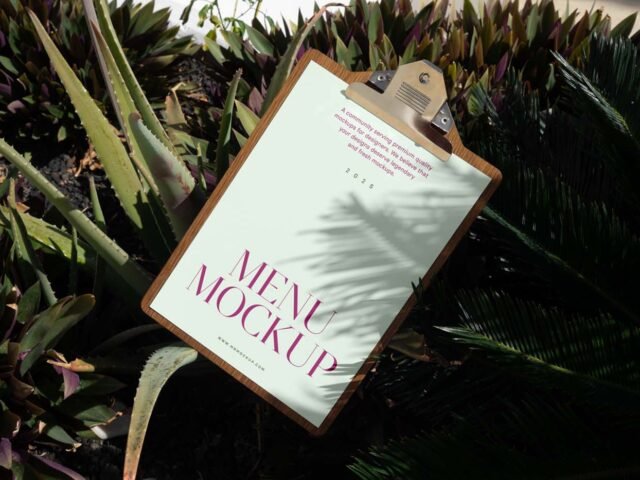
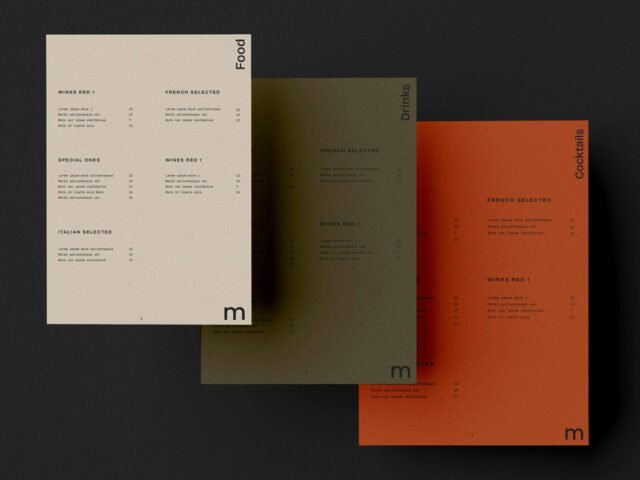
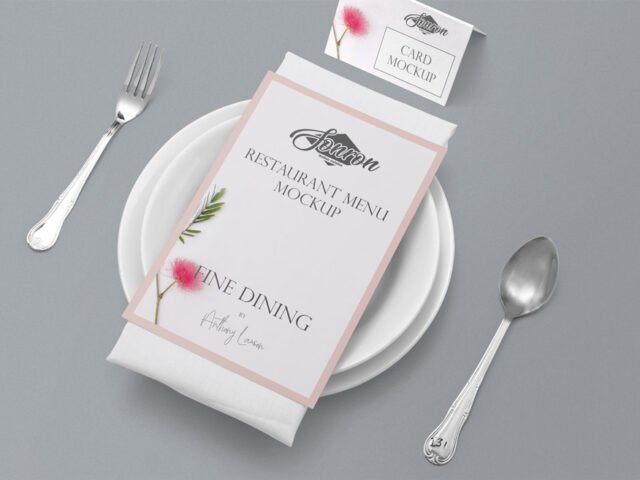
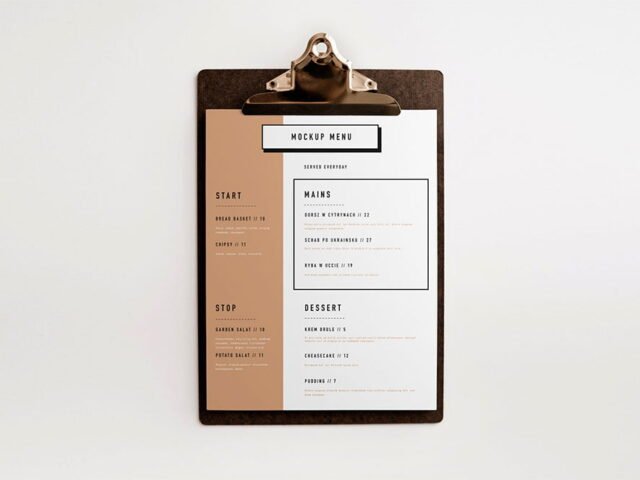
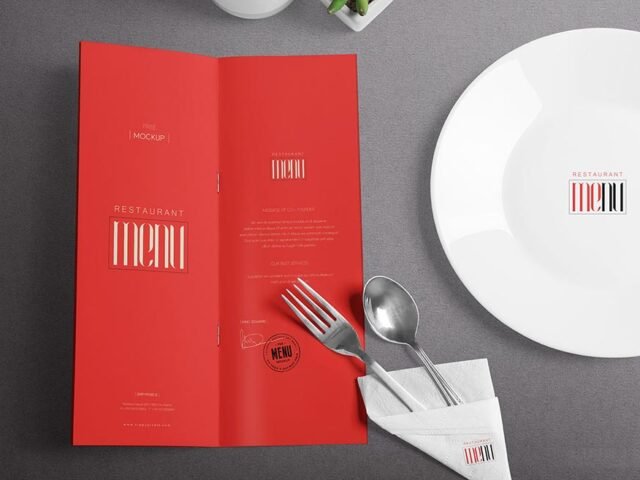
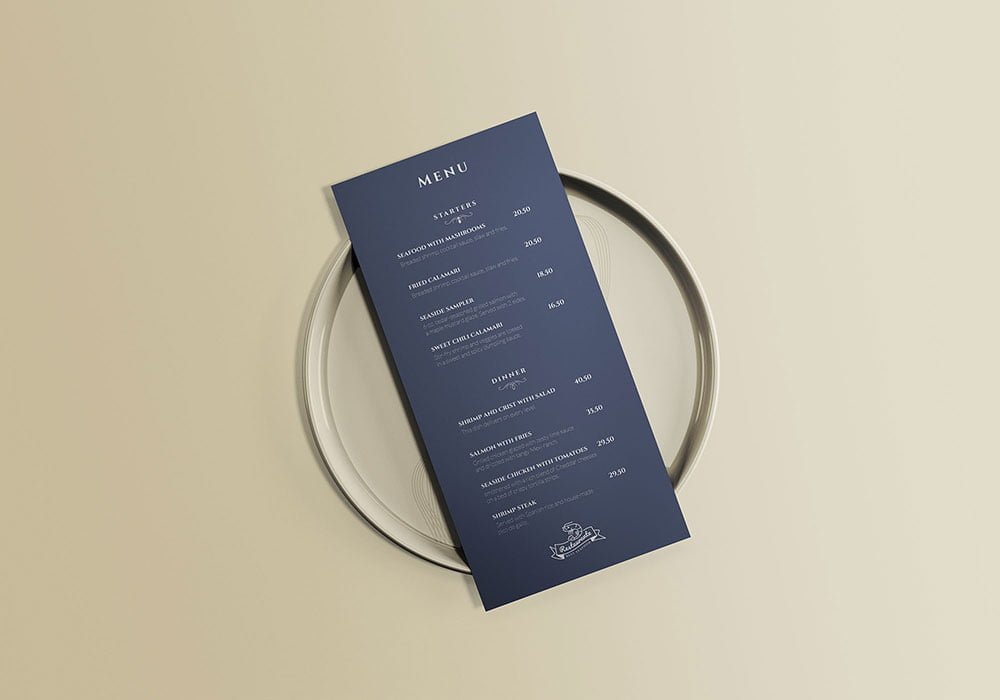
A restaurant menu mockup, made for presenting a restaurant menu. Drop in your artwork and the lighting and shadows stay as they are.
It’s a handy file for hospitality designers and restaurants. A small tip: menus are read up close, so check prices and dish names at 100% zoom in the final export.
It also makes a good cover image for a Behance or Dribbble post, where the first thumbnail decides whether anyone clicks. For a complete brand board, show it next to a business card and a notebook.
The file is made by GraphicPear. The download button takes you to their page, where you get the original file and the licence details.
What you can edit in this Restaurant Menu Mockup
Main things you can change in Photoshop:
- Your design, placed through the smart object
- Shadows and highlights on their own layers
- Paper texture you can turn up or down
- Paper or background colour
Editing the Restaurant Menu Mockup, step by step
- Export your artwork as a high-resolution PNG or JPG, around 300 ppi at print size.
- Open the PSD in Photoshop and find the smart object layer, usually named “Your Design” or “Place Here”.
- Place your design, hide the sample artwork, save, and go back to the main file.
- Change the background or paper colour with the colour layer.
- Save a JPG for clients and social media, and keep the PSD for later changes.
Use CMYK-friendly colours in the artwork itself, even though the mockup is RGB, so what the client sees is close to print.
Where the Restaurant Menu Mockup works best
- Present a café drinks list in a client proposal or brand guide.
- Use it as the cover image for a bar menu in your portfolio.
- Show a restaurant menu on your online shop or product page.
Quick notes on this mockup
- Made by GraphicPear. The download size and format are listed on their page.
- Check the smart object size before you design, so your artwork fits without stretching.
- Built for Adobe Photoshop. A recent CC version handles the smart objects best.
Browse more free menu mockups on Artistic Orbit, with new files added every day.
Questions about this mockup
Is it free for commercial use?
GraphicPear sets the licence, and it can differ from file to file. Many free files allow personal and commercial use, but some are personal-only or ask for credit. Read the terms on the download page before a paid project.
How do I add my design?
Open the file in Photoshop, double-click the smart object thumbnail, paste or place your artwork in the new tab, save it (Ctrl/Cmd + S) and close. The main file updates on its own.
Which Photoshop version do I need?
A recent Photoshop CC version is best. Older versions can open the file but sometimes have trouble with smart objects and effects.
Can I show both sides?
It depends on the file. Many print mockups include a front and a back smart object; the preview usually shows whether both sides are visible.