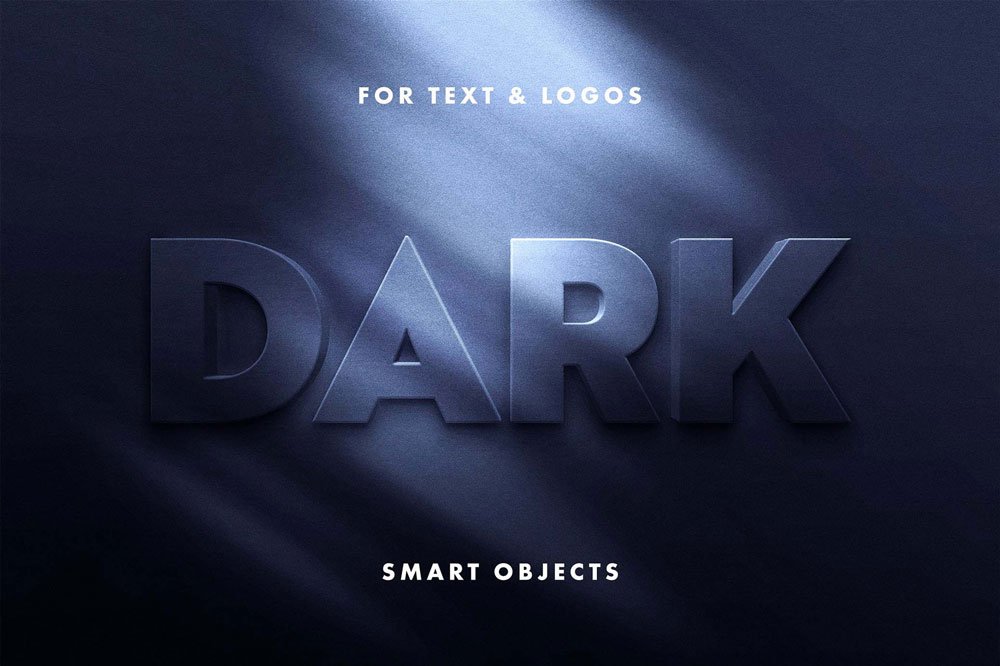
Dark Text Effect
What's inside
- Applications Photoshop
- File Types PSD
- License Free (see author's terms)
- Author Pixelbuddha
Dark Text Effect is a text effect that suits a logo, a headline and a thumbnail title.
Game designers and poster designers tend to get the most out of files like this. One thing worth knowing: short words with bold letterforms carry text effects best. Long sentences lose the effect.
Free resources like this are a good way to try a style before committing to a paid pack.
Credit goes to Pixelbuddha. We link to their download page rather than re-uploading the file, so check their terms there before commercial use.
Getting started with the Dark Text Effect
- Open the PSD in Photoshop.
- Double-click the smart object with the sample text.
- Type your text or paste your logo, then save and close.
- The effect updates on the main canvas; export as PNG or JPG.
Worth remembering: try the pack on a real project before adding it to your library; it’s the quickest way to see if the style fits.
Before you download
- Made by Pixelbuddha. File size and format are listed on their page.
- Check the licence on the author’s page, especially for client work.
- The preview shows exactly what’s included.
- Some free packs ask for credit when used publicly.
Need a different angle? The text effect category has plenty more free PSD files.
Questions about this mockup
Is it free for commercial use?
That depends on the author's terms. The download page lists what is allowed; when in doubt, ask the author directly.
Do I need the same font?
The effect works with any font, but the look in the preview depends on the font the author used. If it's missing, Photoshop will ask you to replace it.
How do I change the text?
Text effects usually sit in a smart object. Double-click it, type your word, save, and the effect updates in the main file.