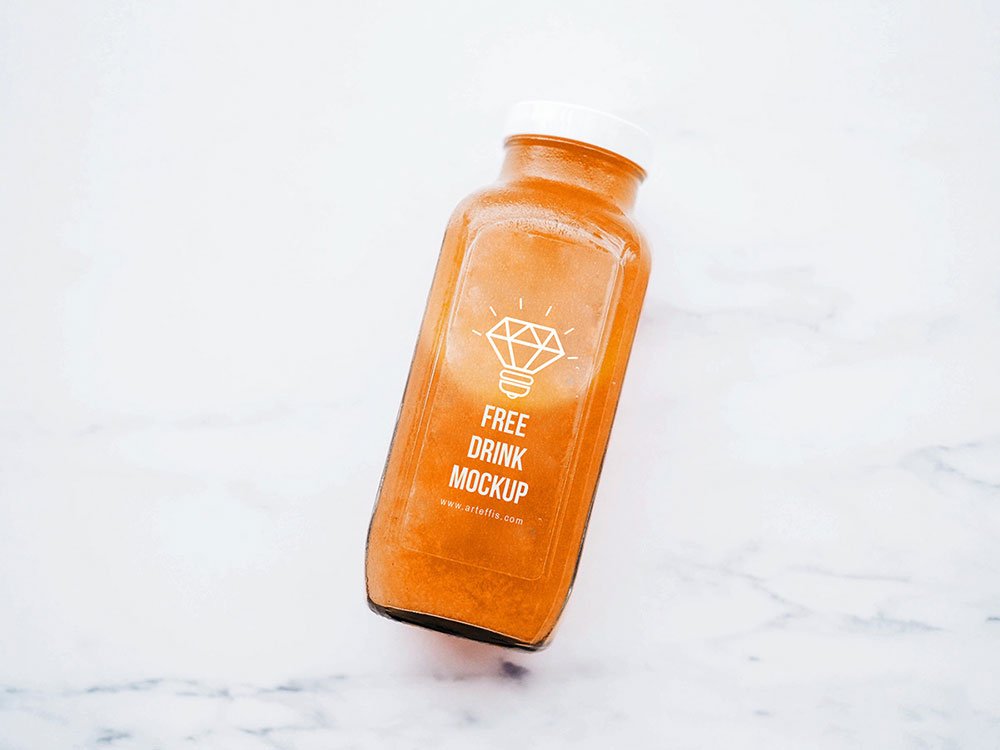
Drink Bottle Mockup
What's inside
- Applications Photoshop
- File Types PSD
- License Free (see author's terms)
- Author Behance
Show a sauce or oil label the way it will actually look: on a drink bottle mockup.
Useful for craft producers as much as for beverage brands. Tip: labels on curved surfaces compress at the sides, so keep key text in the middle third.
It’s also a good way to compare a few label directions side by side without printing anything.
This is a free file from a designer on Behance. When you click download you’ll land on their page to grab it.
What you can edit in this Drink Bottle Mockup
Main things you can change in Photoshop:
- Label artwork, placed through the smart object
- Background colour
- Shadows
Editing the Drink Bottle Mockup, step by step
- Prepare the label with a little space around the edges for the highlights.
- In the Layers panel, find the layer with the small smart object icon and double-click it.
- Drop your artwork in, fit it to the canvas, save and close. The mockup updates by itself.
- Export with File › Export › Export As: JPG for sharing, PNG for the web.
Another tip: transparent or glass items show the background through. Test your label on the actual background colour you’ll use.
Where the Drink Bottle Mockup works best
- Share a drink label on Instagram, Behance or Dribbble with a real-looking preview.
- Show a sauce or oil label to a client before it goes to print or production.
- Use it as the cover image for a wine or spirit label in your portfolio.
Quick notes on this mockup
- Made by a designer on Behance. The download size and format are listed on their page.
- The preview shows the angle, background and lighting you’ll get.
- Built for Adobe Photoshop. A recent CC version handles the smart objects best.
- Check the licence on the author’s page. Personal and commercial terms differ from file to file.
Need a different angle? The bottle mockups category has plenty more free PSD files.
Questions about this mockup
What licence does it come with?
That depends on the author's terms. The download page lists what is allowed; when in doubt, ask the author directly.
How do I add my design?
Open the file in Photoshop, double-click the smart object thumbnail, paste or place your artwork in the new tab, save it (Ctrl/Cmd + S) and close. The main file updates on its own.
Which Photoshop version do I need?
A recent Photoshop CC version is best. Older versions can open the file but sometimes have trouble with smart objects and effects.
Can I change the liquid or container colour?
Most bottle, can and cup mockups keep the container colour on its own layer. Liquid colour, where visible, is usually adjustable too.


