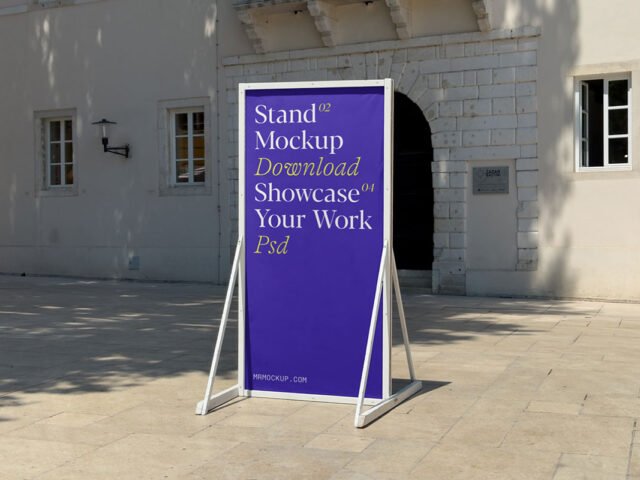
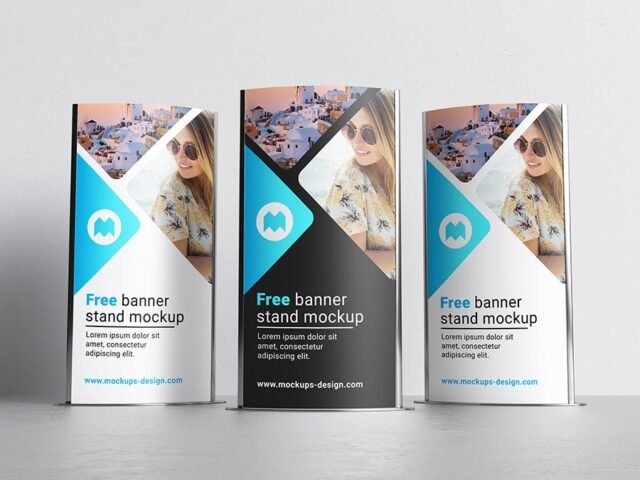
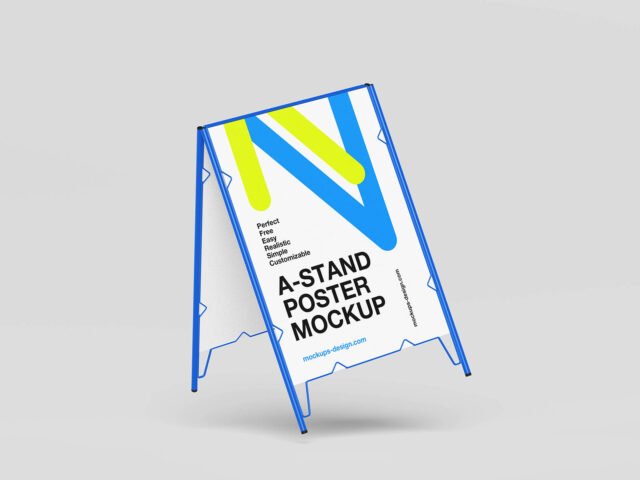
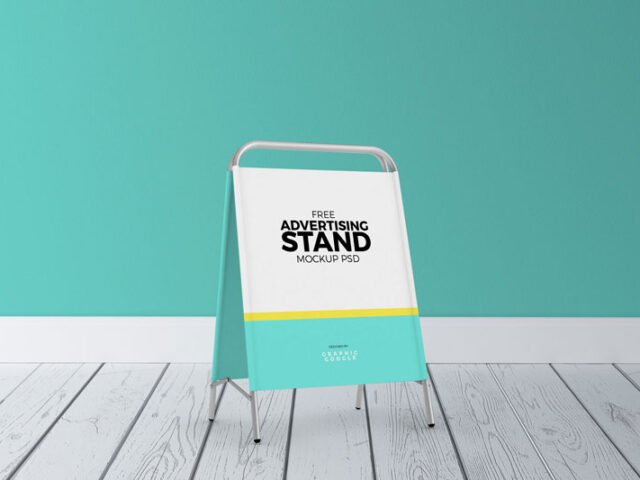
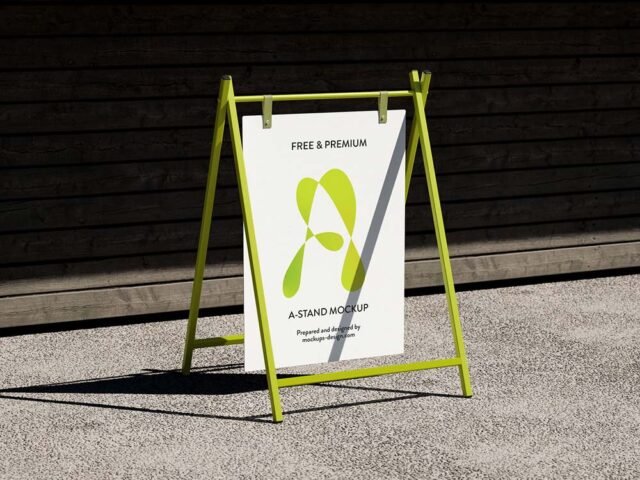
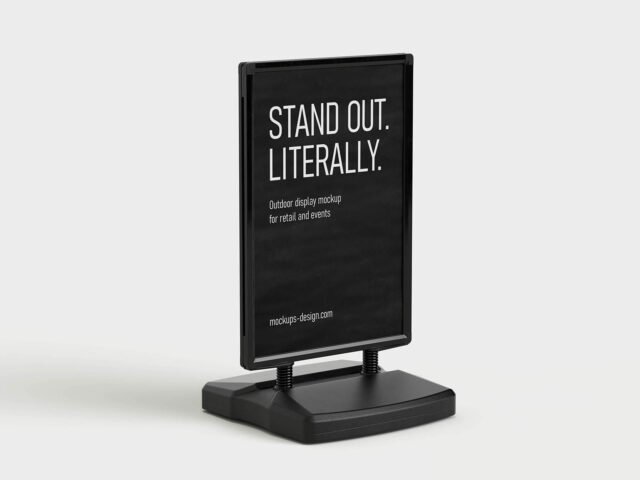
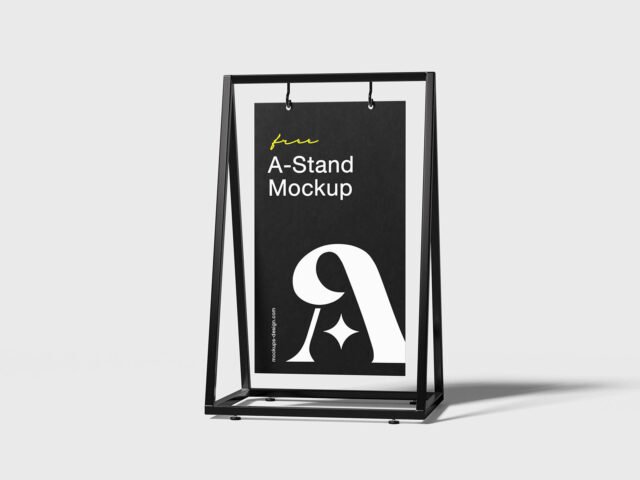
A-Stand Mockup
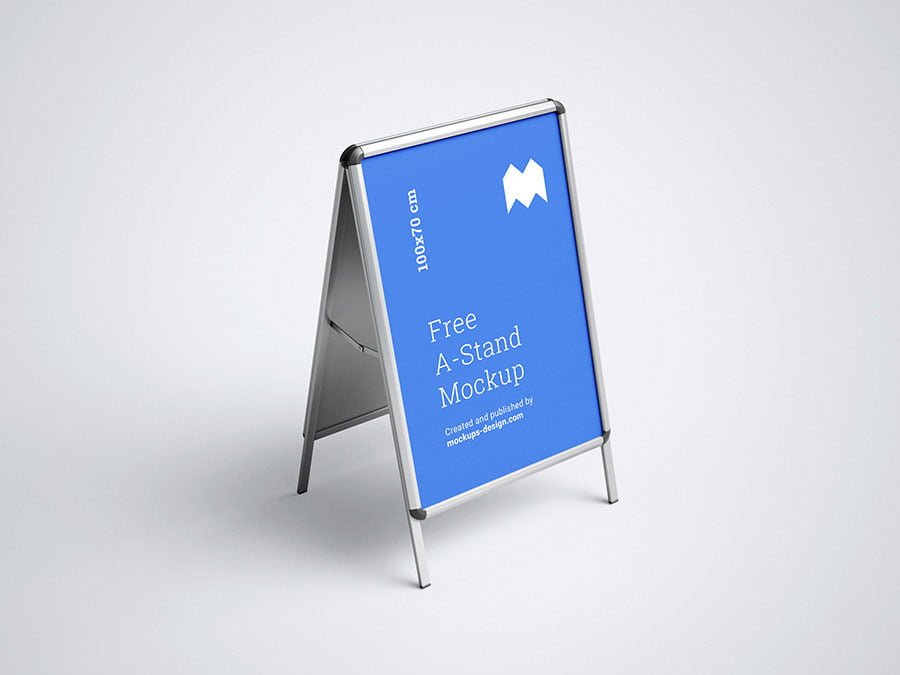
What's inside
- Applications Photoshop
- File Types PSD
- License Free (see author's terms)
- Author Mockups Design
Presenting a counter design? Put it on this a-stand mockup and the client sees the real thing, not a flat file.
Good pick for packaging designers, exhibitors or anyone putting together a portfolio. One thing worth knowing: outdoor ads are read in a second or two. Big type and one image will look far better in this scene than a busy layout.
It’s also handy for student and portfolio work, when you want to show a campaign that never went live.
Mockups Design created this one and hosts the download on their own site, so you always get the latest version straight from the source.
What you can edit in this A-Stand Mockup
Main things you can change in Photoshop:
- Ad artwork, placed through the smart object
- Lighting and shadow layers
- Glow layer for backlit scenes, where included
- Brightness to match the scene
How to use the A-Stand Mockup
- Check the smart object’s ratio first, then build the ad to match it.
- In the Layers panel, find the layer with the small smart object icon and double-click it.
- Paste your design, resize it to fill the area, then save (Ctrl/Cmd + S) and close that tab.
- Match the ad’s brightness to the scene with the lighting layers.
- Export with File › Export › Export As: JPG for sharing, PNG for the web.
Night or backlit scenes usually have a glow layer. Push it up for lightboxes, down for printed paper.
Where the A-Stand Mockup works best
- Show a counter design on your online shop or product page.
- Make two or three colour versions of a point-of-sale display and let the client pick.
- Use it as the cover image for a trade show booth in your portfolio.
Before you download
- Made by Mockups Design. The download size and format are listed on their page.
- Check the smart object size before you design, so your artwork fits without stretching.
- Built for Adobe Photoshop. A recent CC version handles the smart objects best.
Scroll down for similar stand mockups from other designers.
Questions about this mockup
Can I use this display stand mockup for client work?
That depends on the author's terms. The download page lists what is allowed; when in doubt, ask the author directly.
How do I put my artwork on the display stand?
Find the smart object layer (it has a small icon on its thumbnail), double-click it, place your design, then save and close that tab.
Which Photoshop version do I need?
A recent Photoshop CC version is best. Older versions can open the file but sometimes have trouble with smart objects and effects.
What ratio should my artwork be?
Open the smart object and check its canvas; design to that ratio. Most outdoor mockups use common print ratios, but it varies from file to file.