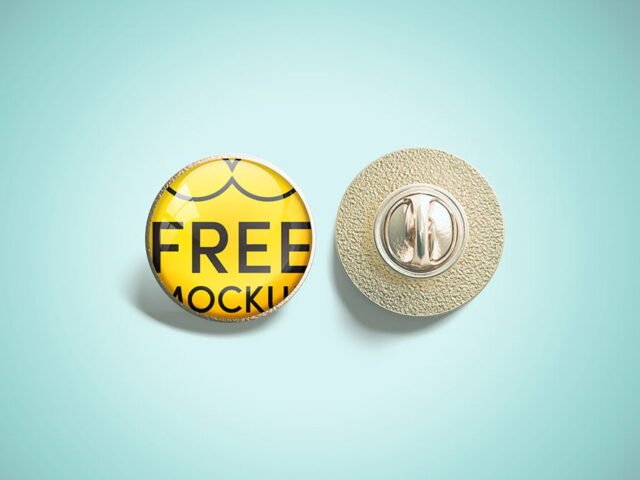
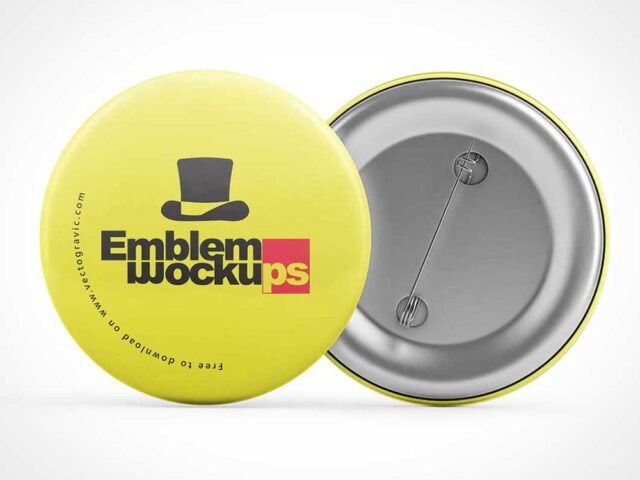
Button Badge Mockup
What's inside
- Applications Photoshop
- File Types PSD
- License Free (see author's terms)
- Author Pixelbuddha
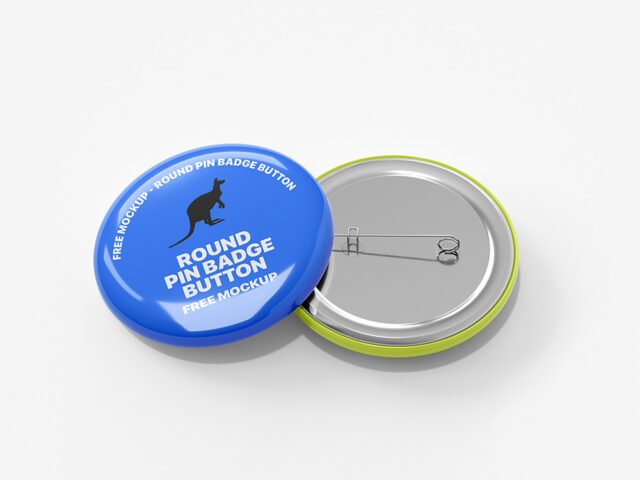
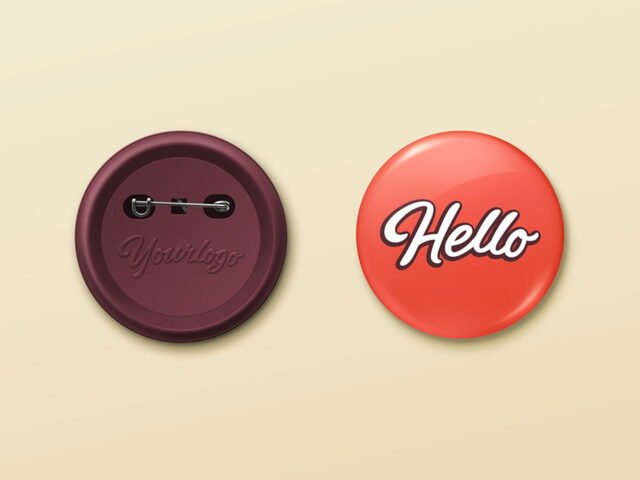
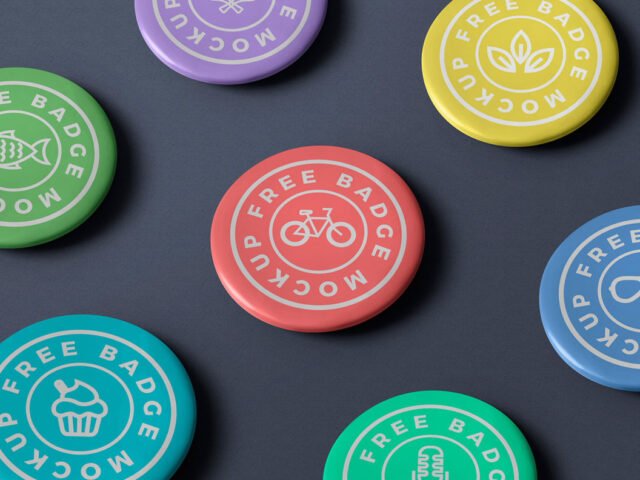
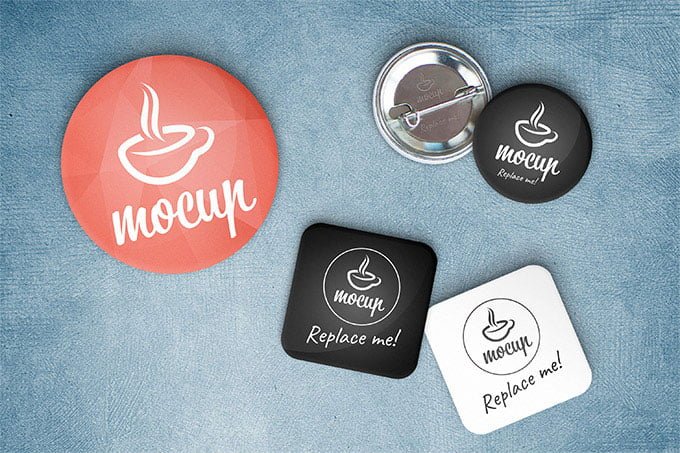
This button badge mockup is a quick way to show a campaign pin without a photo shoot.
Useful for campaign teams as much as for illustrators. Tip: keep your artwork simple. Small objects shrink details quickly, so a bold mark reads better than fine lines.
Merch and gift ideas are much easier to approve when people can see them on the real object.
The file is made by Pixelbuddha. The download button takes you to their page, where you get the original file and the licence details.
Button Badge Mockup: editable parts
The PSD is layered, so you can change:
- Logo or artwork, placed through the smart object
- Shadows
- Background colour
Editing the Button Badge Mockup, step by step
- Prepare the artwork in your brand colours.
- Open the file in Photoshop and double-click the smart object thumbnail in the Layers panel.
- Drop your artwork in, fit it to the canvas, save and close. The mockup updates by itself.
- Export with File › Export › Export As: JPG for sharing, PNG for the web.
Use a PNG with transparency for logos so the material around them keeps its texture.
Ways to use this Button Badge Mockup
- Present an enamel pin design in a client proposal or brand guide.
- Share a campaign pin on Instagram, Behance or Dribbble with a real-looking preview.
- Show a button badge on your online shop or product page.
Good to know
- Made by Pixelbuddha. The download size and format are listed on their page.
- Built for Adobe Photoshop. A recent CC version handles the smart objects best.
- Check the licence on the author’s page. Personal and commercial terms differ from file to file.
Need a different angle? The pin button badge mockups category has plenty more free PSD files.
Questions about this mockup
What licence does it come with?
Pixelbuddha sets the licence, and it can differ from file to file. Many free files allow personal and commercial use, but some are personal-only or ask for credit. Read the terms on the download page before a paid project.
How do I add my design?
Open the file in Photoshop, double-click the smart object thumbnail, paste or place your artwork in the new tab, save it (Ctrl/Cmd + S) and close. The main file updates on its own.
Which Photoshop version do I need?
A recent Photoshop CC version is best. Older versions can open the file but sometimes have trouble with smart objects and effects.
Can I change the background?
Most object mockups have a background colour or image layer at the bottom of the stack that you can swap.
Why does the download open another website?
We list free files from designers around the web and link to the original page, so Pixelbuddha gets the visit and you get the file exactly as they published it.