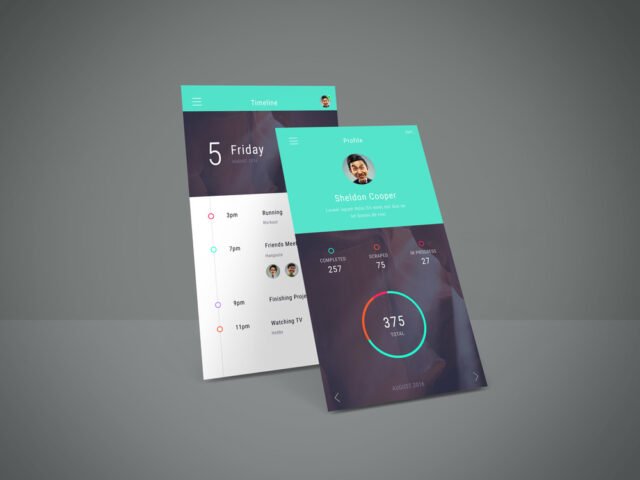
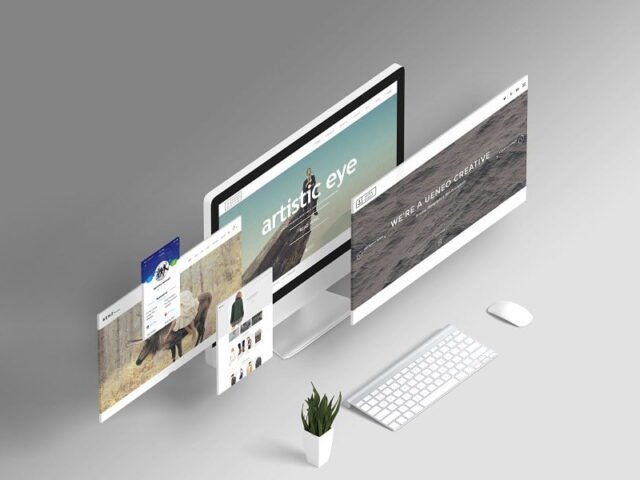
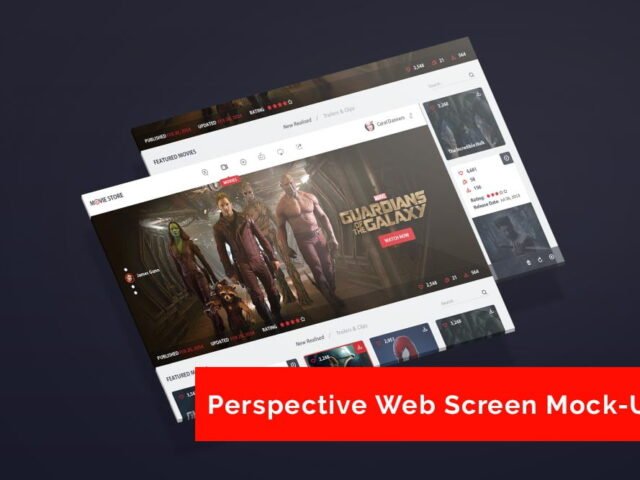
Devices UI Mockup

What's inside
- Applications Photoshop
- File Types PSD
- License Free (see author's terms)
- Author Pixeden
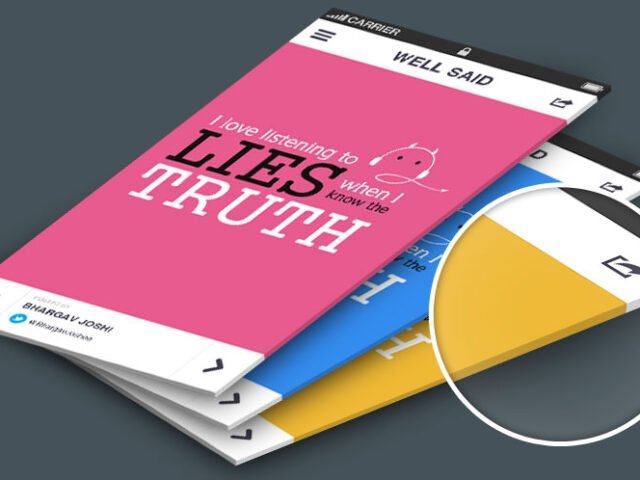
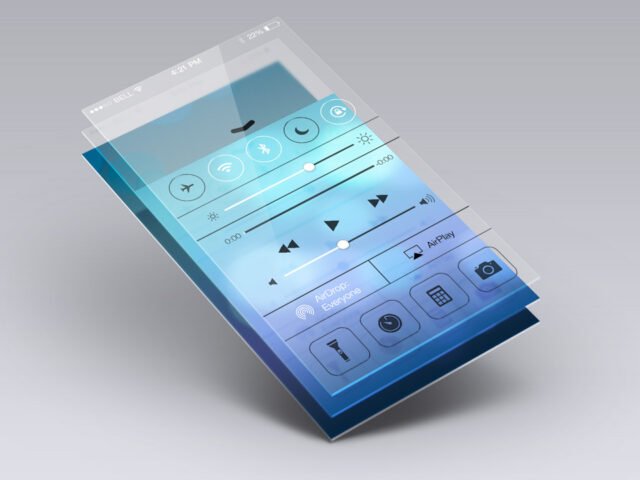
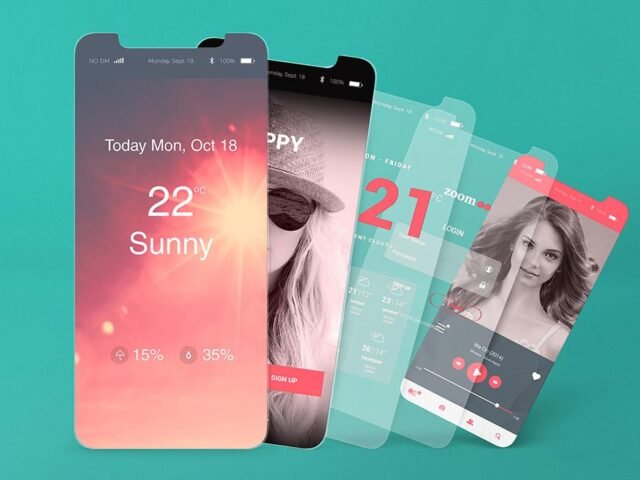
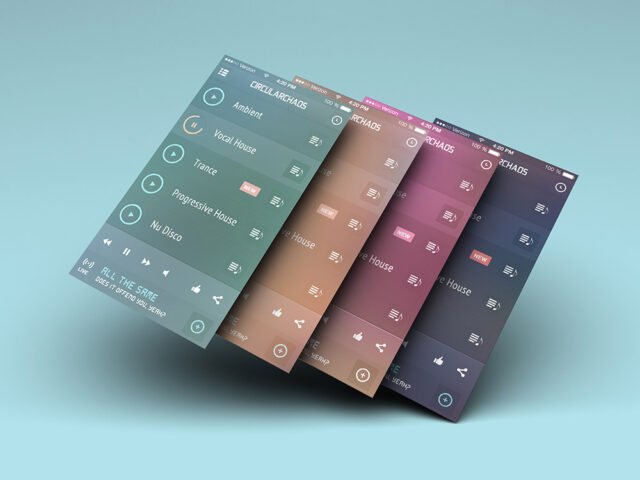
Presenting a case study header? Put it on this devices UI mockup and the client sees the real thing, not a flat file.
It’s a handy file for product teams and UI/UX designers. One thing worth knowing: put your strongest screen in the most visible position. People judge the whole set by the first screen they see.
Stakeholders who don’t read wireframes still understand a screen on a device straight away.
Use it for
- A case study header
- A website flow
- A UI kit preview
Pixeden created this one and hosts the download on their own site, so you always get the latest version straight from the source.
Editable options in the Devices UI Mockup PSD
Open it in Photoshop and you can change:
- Screen design, placed through the smart object
- Shadow under the device
- Device colour, where the file includes it
- Background colour
Editing the Devices UI Mockup, step by step
- Take a clean screenshot of the app or website you want to show.
- Open the PSD in Photoshop and find the smart object layer, usually named “Your Design” or “Place Here”.
- Paste your design, resize it to fill the area, then save (Ctrl/Cmd + S) and close that tab.
- Save a JPG for clients and social media, and keep the PSD for later changes.
One more thing: make your screen design at the exact pixel size of the smart object, otherwise text on the screen turns blurry.
Where the Devices UI Mockup works best
- Present a case study header in a client proposal or brand guide.
- Use it as the cover image for a website flow in your portfolio.
- Make two or three colour versions of several app screens and let the client pick.
Before you download
- Made by Pixeden. The download size and format are listed on their page.
- Built for Adobe Photoshop. A recent CC version handles the smart objects best.
- Some free mockups ask for credit when you post them. A short line in your caption is enough.
Need a different angle? The app screen mockups category has plenty more free PSD files.
Questions about this mockup
Is it free for commercial use?
Pixeden sets the licence, and it can differ from file to file. Many free files allow personal and commercial use, but some are personal-only or ask for credit. Read the terms on the download page before a paid project.
How do I put my artwork on the screen presentation?
Find the smart object layer (it has a small icon on its thumbnail), double-click it, place your design, then save and close that tab.
Which Photoshop version do I need?
A recent Photoshop CC version is best. Older versions can open the file but sometimes have trouble with smart objects and effects.
What size should my screenshot be?
Open the screen smart object and check its canvas size in Image › Canvas Size. Paste your screenshot at that size so it stays sharp.
Why does the download open another website?
We list free files from designers around the web and link to the original page, so Pixeden gets the visit and you get the file exactly as they published it.