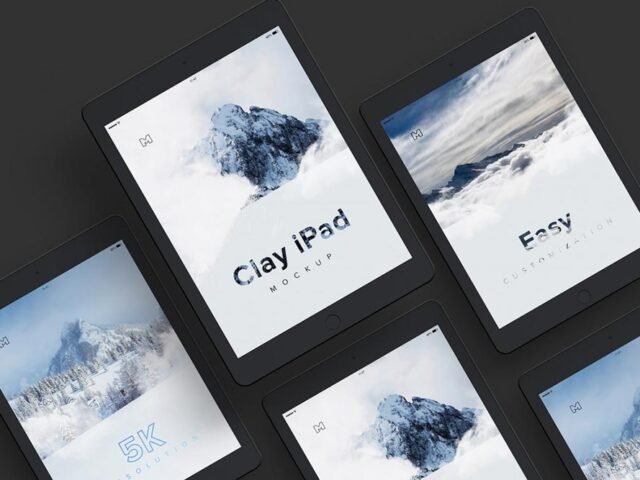
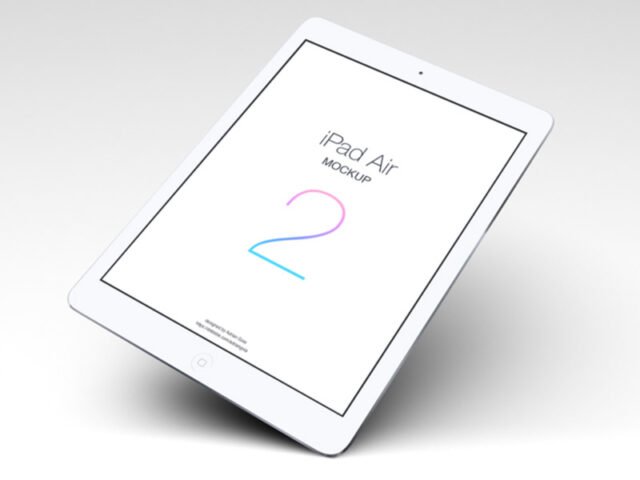
Flat Lay iPad Mockup

What's inside
- Applications Photoshop
- File Types PSD
- License Free (see author's terms)
- Author PSD Graphics
A flat lay iPad mockup, made for presenting a dashboard. Drop in your artwork and the lighting and shadows stay as they are.
Good pick for UI designers, product teams or anyone putting together a portfolio. Tip: make your screen design at the exact pixel size of the smart object, otherwise text on the screen turns blurry.
It’s also a quick way to make case study images look consistent: same device, same angle, different screens. Pair it with a second device from the same angle to show a responsive layout.
Credit goes to PSD Graphics. We link to their download page rather than re-uploading the file, so check their terms there before commercial use.
What’s inside the Flat Lay iPad Mockup PSD
Main things you can change in Photoshop:
- Screen design, placed through the smart object
- Device colour, where the file includes it
- Screen glare and reflection layers
- Shadow under the device
How to edit this Flat Lay iPad Mockup in Photoshop
- Take a clean screenshot of the app or website you want to show.
- Open the PSD in Photoshop and find the smart object layer, usually named “Your Design” or “Place Here”.
- Place your design, hide the sample artwork, save, and go back to the main file.
- Lower the glare layer if it hides small text.
- Export a full-size image for your portfolio and a smaller one for social media.
Another tip: turn the screen glare layer down if your UI has small type. Glare looks nice but hides detail.
Where the Flat Lay iPad Mockup works best
- Show an e-learning screen to a client before it goes to print or production.
- Use it as the cover image for a tablet app in your portfolio.
- Show a dashboard on your online shop or product page.
Quick notes on this mockup
- Made by PSD Graphics. The download size and format are listed on their page.
- Built for Adobe Photoshop. A recent CC version handles the smart objects best.
- Check the smart object size before you design, so your artwork fits without stretching.
- Some free mockups ask for credit when you post them. A short line in your caption is enough.
Need a different angle? The ipad mockups category has plenty more free PSD files.
Questions about this mockup
Is it free for commercial use?
That depends on the author's terms. The download page lists what is allowed; when in doubt, ask the author directly.
How do I put my artwork on the iPad?
Find the smart object layer (it has a small icon on its thumbnail), double-click it, place your design, then save and close that tab.
Which Photoshop version do I need?
A recent Photoshop CC version is best. Older versions can open the file but sometimes have trouble with smart objects and effects.
Can I remove the screen reflection?
Usually yes. Reflections and glare are normally a separate layer that you can hide or lower in opacity.