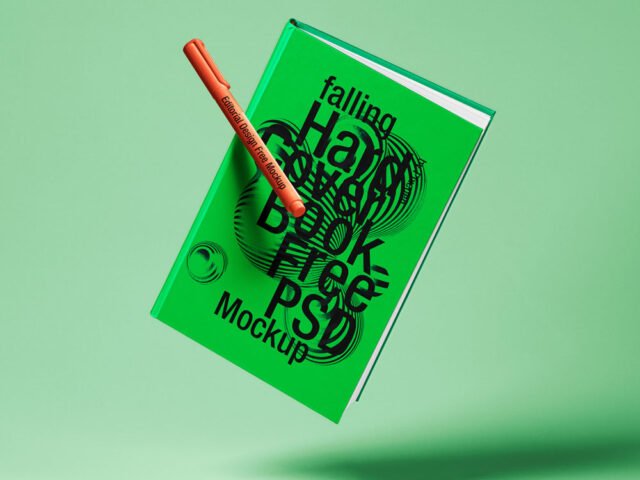
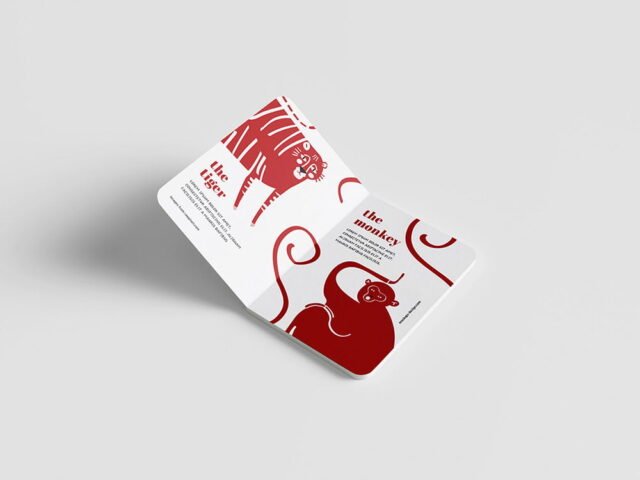
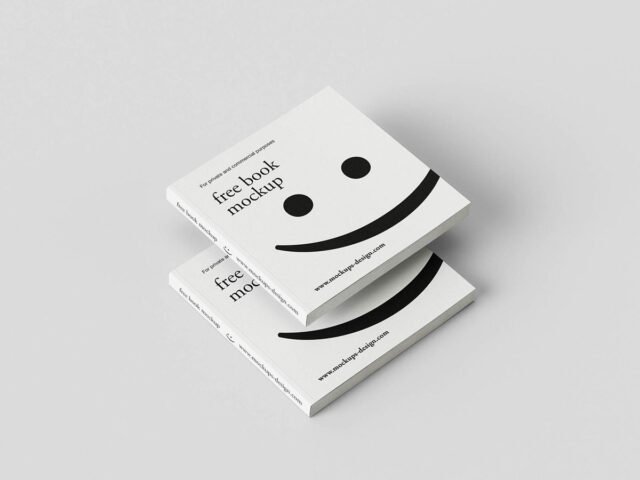
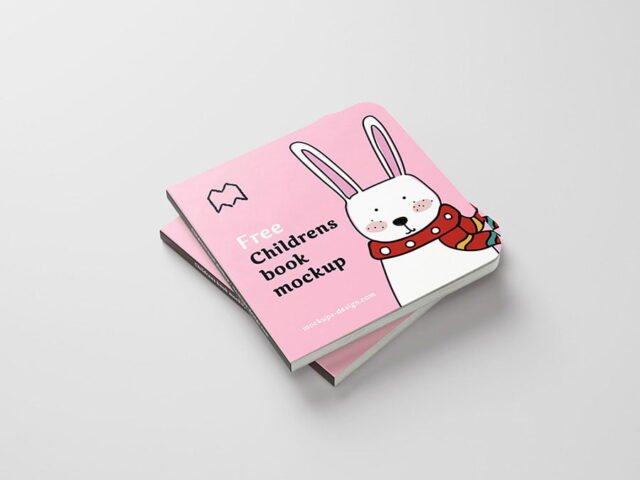
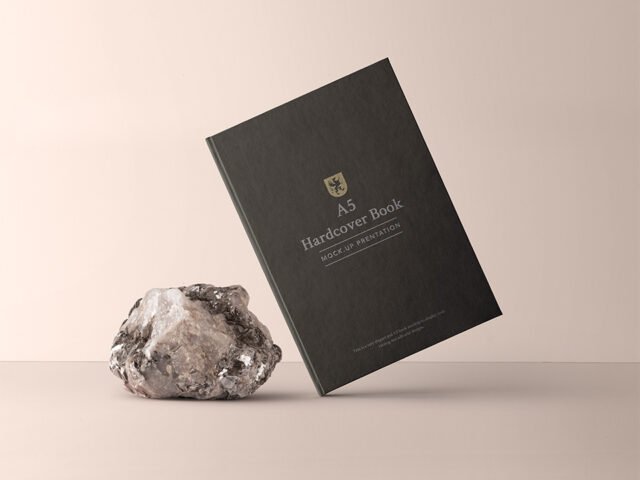
Gravity Branding Square Book Mockup

What's inside
- Applications Photoshop
- File Types PSD
- License Free (see author's terms)
- Author Pixeden
If you’re presenting an annual report cover, this gravity branding square book mockup makes the idea feel real before anything is produced.
Useful for publishers as much as for cover designers. One thing worth knowing: design the spine too, even if it’s narrow. Book mockups showing the side look unfinished with a blank spine.
Seeing a layout on a real book is also the easiest way to catch problems early. A phone number that looked fine on screen can turn out too small once it sits on paper. If you’re building a full identity, pair it with an envelope or letterhead mockup for a matching set.
The file is made by Pixeden. The download button takes you to their page, where you get the original file and the licence details.
What you can edit in this Gravity Branding Square Book Mockup
Everything below is on its own layer:
- Your design, placed through the smart object
- Paper texture you can turn up or down
- Paper or background colour
Editing the Gravity Branding Square Book Mockup, step by step
- Set up the design flat at the real print size and keep text inside a safe margin.
- In the Layers panel, find the layer with the small smart object icon and double-click it.
- Place your design, hide the sample artwork, save, and go back to the main file.
- Export a full-size image for your portfolio and a smaller one for social media.
One more thing: use CMYK-friendly colours in the artwork itself, even though the mockup is RGB, so what the client sees is close to print.
Ways to use this Gravity Branding Square Book Mockup
- Show a cookbook on your online shop or product page.
- Show an annual report cover to a client before it goes to print or production.
- Make two or three colour versions of a novel jacket and let the client pick.
Good to know
- Made by Pixeden. The download size and format are listed on their page.
- The preview shows the angle, background and lighting you’ll get.
- Check the licence on the author’s page. Personal and commercial terms differ from file to file.
- Some free mockups ask for credit when you post them. A short line in your caption is enough.
More free book mockups are listed below, each linking to the original author.
Questions about this mockup
Can I use this book mockup for client work?
Pixeden sets the licence, and it can differ from file to file. Many free files allow personal and commercial use, but some are personal-only or ask for credit. Read the terms on the download page before a paid project.
How do I put my artwork on the book?
Find the smart object layer (it has a small icon on its thumbnail), double-click it, place your design, then save and close that tab.
Which Photoshop version do I need?
A recent Photoshop CC version is best. Older versions can open the file but sometimes have trouble with smart objects and effects.
Can I show both sides?
It depends on the file. Many print mockups include a front and a back smart object; the preview usually shows whether both sides are visible.