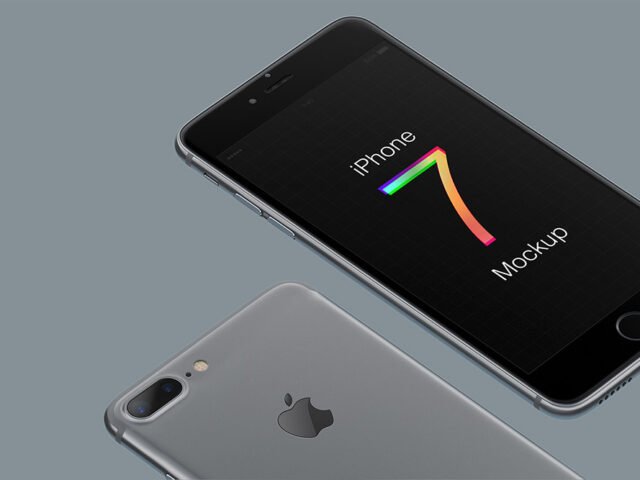
iPhone 6 Mockup

What's inside
- Applications Photoshop
- File Types PSD
- License Free (see author's terms)
- Author GraphicsFuel
An app screen looks better on an iPhone 6 mockup than on a white artboard, and this mockup is set up for exactly that.
App designers and startup teams tend to get the most out of files like this. One thing worth knowing: for recent iPhones, keep important UI clear of the notch or Dynamic Island area.
Stakeholders who don’t read wireframes still understand a screen on a device straight away. Pair it with a second device from the same angle to show a responsive layout.
Use it for
- An app screen
- A website on mobile
- An Instagram story design
GraphicsFuel created this one and hosts the download on their own site, so you always get the latest version straight from the source.
What you can edit in this iPhone 6 Mockup
Open it in Photoshop and you can change:
- Screen design, placed through the smart object
- Screen glare and reflection layers
- Shadow under the device
- Background colour
How to edit this iPhone 6 Mockup in Photoshop
- Pick one strong screen. It reads better than a crowded one.
- In the Layers panel, find the layer with the small smart object icon and double-click it.
- Place your design, hide the sample artwork, save, and go back to the main file.
- Change the background colour to fit your brand.
- Export a full-size image for your portfolio and a smaller one for social media.
Turn the screen glare layer down if your UI has small type. Glare looks nice but hides detail.
Best uses for this iPhone 6 Mockup
- Present a landing page in a client proposal or brand guide.
- Show an Instagram story design to a client before it goes to print or production.
- Make two or three colour versions of a website on mobile and let the client pick.
Before you download
- Made by GraphicsFuel. The download size and format are listed on their page.
- Check the smart object size before you design, so your artwork fits without stretching.
- Built for Adobe Photoshop. A recent CC version handles the smart objects best.
Scroll down for similar iphone mockups from other designers.
Questions about this mockup
Can I use this iPhone mockup for client work?
That depends on the author's terms. The download page lists what is allowed; when in doubt, ask the author directly.
How do I put my artwork on the iPhone?
Find the smart object layer (it has a small icon on its thumbnail), double-click it, place your design, then save and close that tab.
Which Photoshop version do I need?
A recent Photoshop CC version is best. Older versions can open the file but sometimes have trouble with smart objects and effects.
Which iPhone model is this?
The model is in the title. Screen sizes differ between generations, so always check the smart object size before exporting your screen.