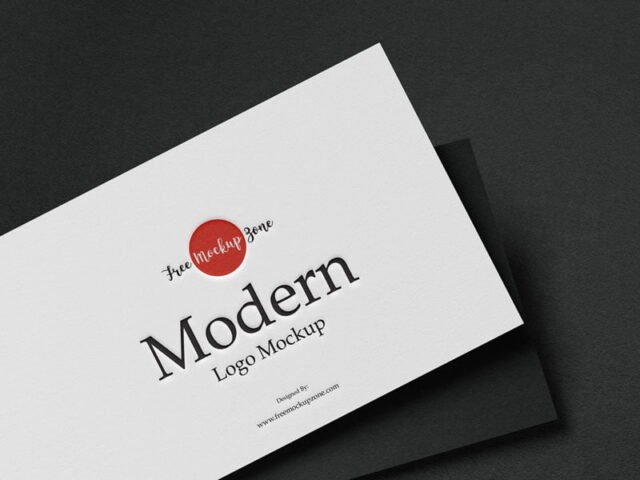
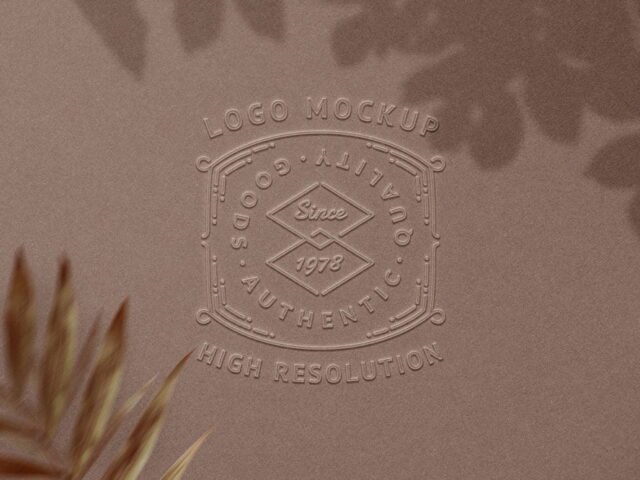
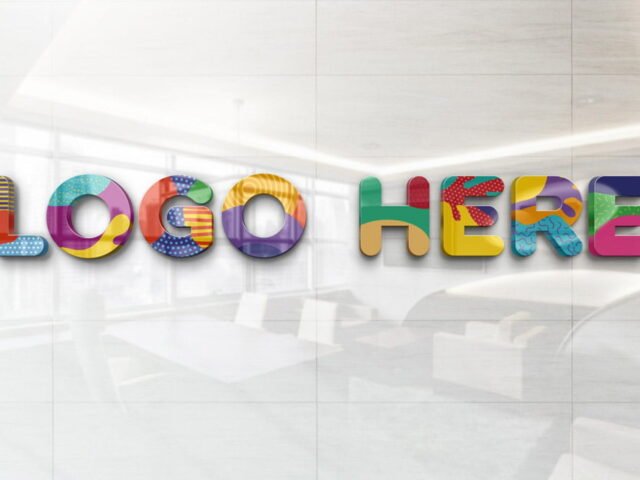
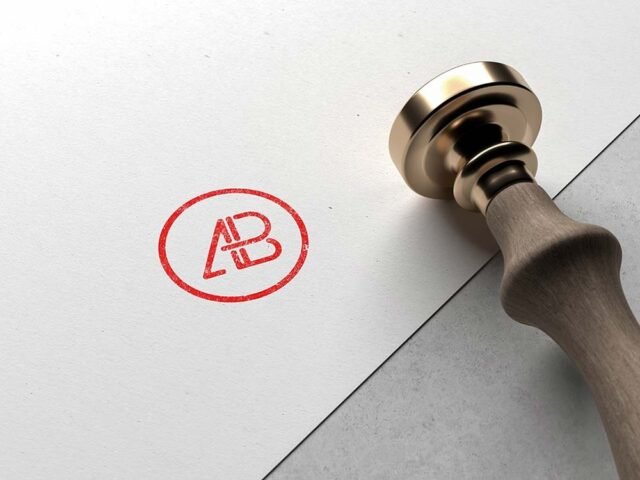
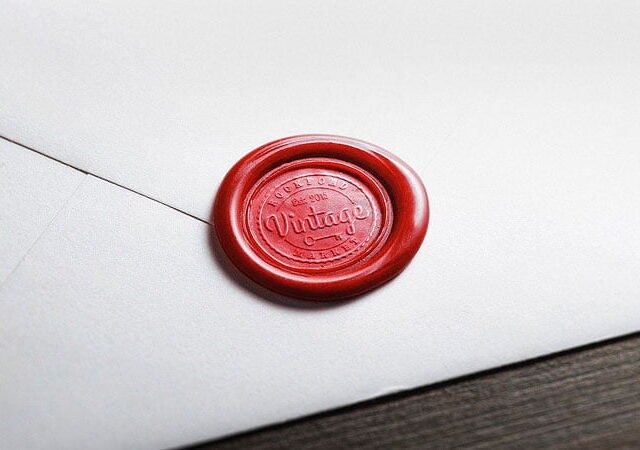
Luxury Logo Mockup
What's inside
- Applications Photoshop
- File Types PSD
- License Free (see author's terms)
- Author Graphics Egg
If you’re presenting a new logo, this luxury logo mockup makes the idea feel real before anything is produced.
Good pick for branding studios, freelancers on Behance or anyone putting together a portfolio. Tip: use a vector or high-resolution PNG version of the logo; this is the one mockup where every edge is looked at closely.
It helps you test the mark at small sizes and in one colour, which is where weak logos fall apart.
Works well for
- A new logo
- A brand mark reveal
- A signage concept
The file is made by Graphics Egg. The download button takes you to their page, where you get the original file and the licence details.
What you can edit in this Luxury Logo Mockup
Main things you can change in Photoshop:
- Your design, placed through the smart object
- Front and back artwork, where both sides are shown
- Paper or background colour
- Shadows and highlights on their own layers
Editing the Luxury Logo Mockup, step by step
- Get your artwork ready at print size, with 1/8 inch of bleed if it runs to the edge.
- In the Layers panel, find the layer with the small smart object icon and double-click it.
- Paste your design, resize it to fill the area, then save (Ctrl/Cmd + S) and close that tab.
- Turn the texture layer up or down to match the paper you’ll print on.
- Save a JPG for clients and social media, and keep the PSD for later changes.
Use CMYK-friendly colours in the artwork itself, even though the mockup is RGB, so what the client sees is close to print.
Best uses for this Luxury Logo Mockup
- Use it as the cover image for a signage concept in your portfolio.
- Present a new logo in a client proposal or brand guide.
- Show a brand mark reveal to a client before it goes to print or production.
Quick notes on this mockup
- Made by Graphics Egg. The download size and format are listed on their page.
- Check the smart object size before you design, so your artwork fits without stretching.
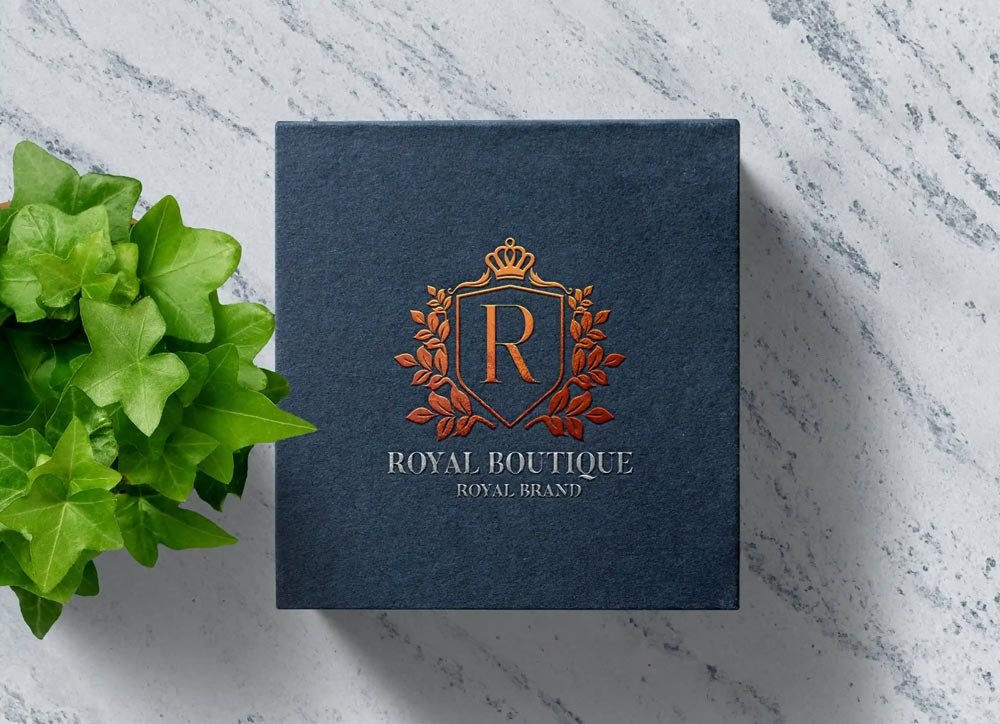
- The preview shows the angle, background and lighting you’ll get.
- Check the licence on the author’s page. Personal and commercial terms differ from file to file.
More free logo mockups are listed below, each linking to the original author.
Questions about this mockup
What licence does it come with?
That depends on the author's terms. The download page lists what is allowed; when in doubt, ask the author directly.
How do I put my artwork on the logo?
Find the smart object layer (it has a small icon on its thumbnail), double-click it, place your design, then save and close that tab.
Do I need Photoshop?
Yes. This is a PSD mockup built with smart objects, so you edit it in Adobe Photoshop. Any recent CC version works.
Will my artwork look printed or pasted on?
Most print mockups keep the paper texture and lighting on separate layers above your design, so it takes on the grain and shadows. If it still looks too clean, lower the opacity of your artwork a little.