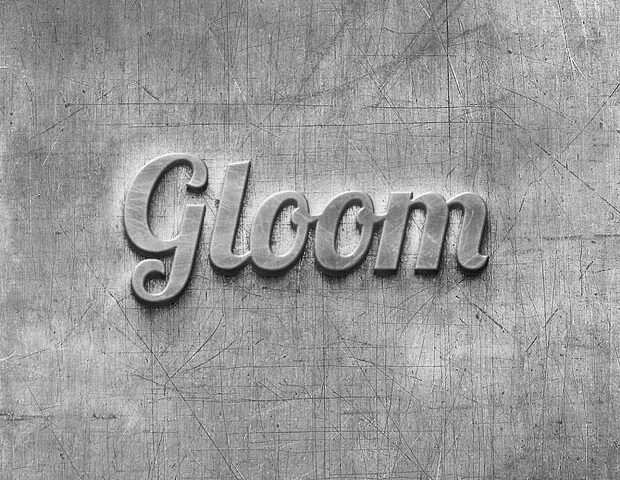
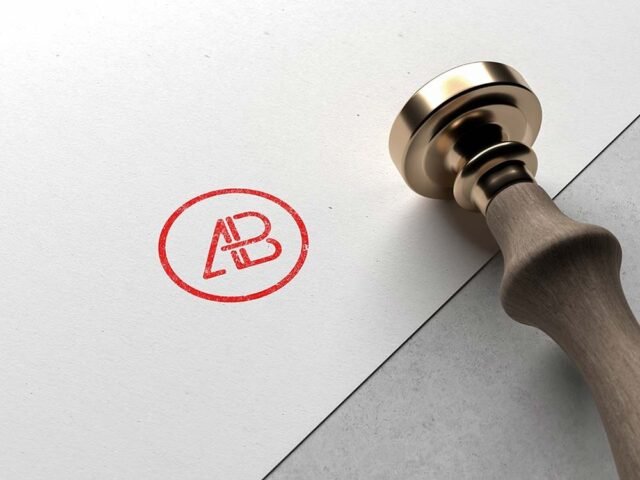
Neon Logo Mockup

What's inside
- Applications Photoshop
- File Types PSD
- License Free (see author's terms)
- Author Behance
Here’s a neon logo mockup that works well for a brand mark reveal, a signage concept and similar projects.
It’s a handy file for freelancers on Behance and logo designers. A small tip: single-colour versions of a logo usually look better in embossed or foil effects than full-colour ones.
A logo on its own is hard to judge; seeing it pressed, printed or lit on a real surface tells the client far more.
Credit goes to a designer on Behance. We link to their download page rather than re-uploading the file, so check their terms there before commercial use.
Neon Logo Mockup: editable parts
Everything below is on its own layer:
- Your design, placed through the smart object
- Shadows and highlights on their own layers
- Paper or background colour
- Front and back artwork, where both sides are shown
How to edit this Neon Logo Mockup in Photoshop
- Set up the design flat at the real print size and keep text inside a safe margin.
- Open the file in Photoshop and double-click the smart object thumbnail in the Layers panel.
- Paste your design, resize it to fill the area, then save (Ctrl/Cmd + S) and close that tab.
- Turn the texture layer up or down to match the paper you’ll print on.
- Export with File › Export › Export As: JPG for sharing, PNG for the web.
Worth remembering: export your artwork at the size the smart object asks for; scaling a small file up is the usual reason print mockups look soft.
Where the Neon Logo Mockup works best
- Make two or three colour versions of a new logo and let the client pick.
- Show a brand mark reveal on your online shop or product page.
- Use it as the cover image for a signage concept in your portfolio.
Good to know
- Made by a designer on Behance. The download size and format are listed on their page.
- Built for Adobe Photoshop. A recent CC version handles the smart objects best.
- The preview shows the angle, background and lighting you’ll get.
- Check the smart object size before you design, so your artwork fits without stretching.
More free logo mockups are listed below, each linking to the original author.
Questions about this mockup
Can I use this logo mockup for client work?
It's free to download, but the licence belongs to a designer on Behance. Check their page: it states whether commercial use is allowed and if attribution is needed.
How do I put my artwork on the logo?
Find the smart object layer (it has a small icon on its thumbnail), double-click it, place your design, then save and close that tab.
Do I need Photoshop?
Yes. This is a PSD mockup built with smart objects, so you edit it in Adobe Photoshop. Any recent CC version works.
Will my artwork look printed or pasted on?
Most print mockups keep the paper texture and lighting on separate layers above your design, so it takes on the grain and shadows. If it still looks too clean, lower the opacity of your artwork a little.