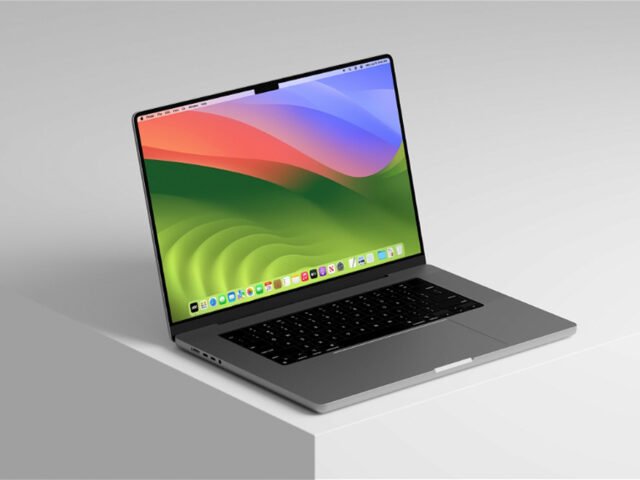
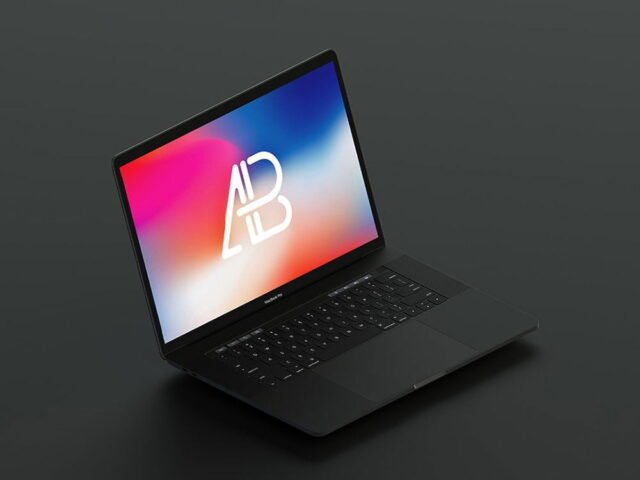
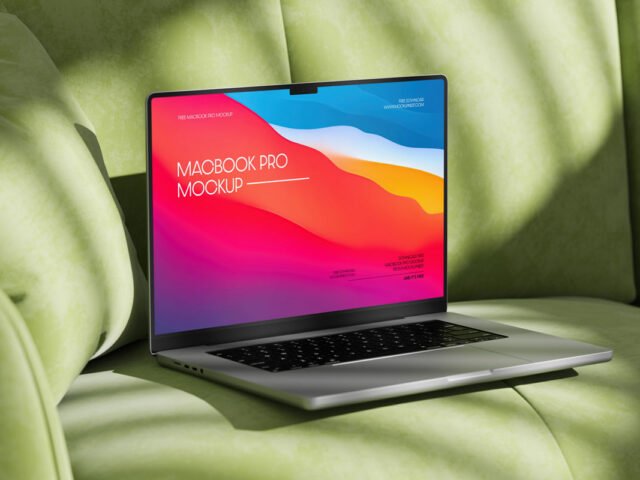
New MacBook Pro Mockups
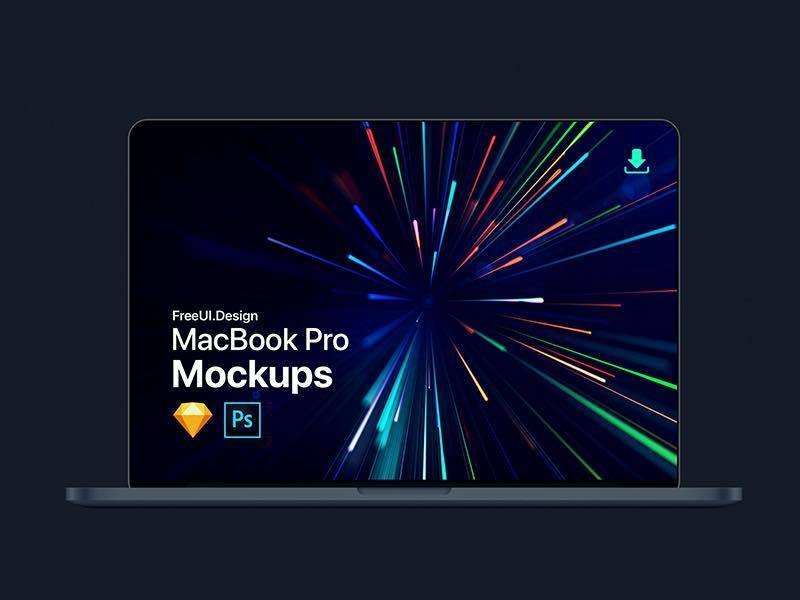
What's inside
- Applications Photoshop
- File Types PSD
- License Free (see author's terms)
- Author Gumroad
Need to show a website homepage to a client? This new MacBook Pro mockup does the job in a few minutes.
Developers and agencies tend to get the most out of files like this. Quick tip: for app store or portfolio images, crop tight around the device so the screen fills most of the frame.
It’s also a quick way to make case study images look consistent: same device, same angle, different screens. Pair it with a second device from the same angle to show a responsive layout.
Works well for
- A website homepage
- A portfolio case study
- A web app
This is a free file from a designer on Gumroad. When you click download you’ll land on their page to grab it.
New MacBook Pro Mockups: editable parts
Open it in Photoshop and you can change:
- Screen design, placed through the smart object
- Background colour
- Device colour, where the file includes it
How to use the New MacBook Pro Mockups
- Take a clean screenshot of the app or website you want to show.
- Open the file in Photoshop and double-click the smart object thumbnail in the Layers panel.
- Paste your design, resize it to fill the area, then save (Ctrl/Cmd + S) and close that tab.
- Change the background colour to fit your brand.
- Export with File › Export › Export As: JPG for sharing, PNG for the web.
One more thing: turn the screen glare layer down if your UI has small type. Glare looks nice but hides detail.
Where the New MacBook Pro Mockups works best
- Show a SaaS dashboard on your online shop or product page.
- Use it as the cover image for a portfolio case study in your portfolio.
- Present a web app in a client proposal or brand guide.
Good to know
- Made by a designer on Gumroad. The download size and format are listed on their page.
- The preview shows the angle, background and lighting you’ll get.
- Check the smart object size before you design, so your artwork fits without stretching.
- Check the licence on the author’s page. Personal and commercial terms differ from file to file.
Scroll down for similar macbook mockups from other designers.
Questions about this mockup
Is it free for commercial use?
A designer on Gumroad sets the licence, and it can differ from file to file. Many free files allow personal and commercial use, but some are personal-only or ask for credit. Read the terms on the download page before a paid project.
How do I add my design?
Open the file in Photoshop, double-click the smart object thumbnail, paste or place your artwork in the new tab, save it (Ctrl/Cmd + S) and close. The main file updates on its own.
Do I need Photoshop?
Yes. This is a PSD mockup built with smart objects, so you edit it in Adobe Photoshop. Any recent CC version works.
What size should my screenshot be?
Open the screen smart object and check its canvas size in Image › Canvas Size. Paste your screenshot at that size so it stays sharp.