Notepad Mockups PSD
What's inside
- Applications Photoshop
- File Types PSD
- License Free (see author's terms)
- Author Mockups Design
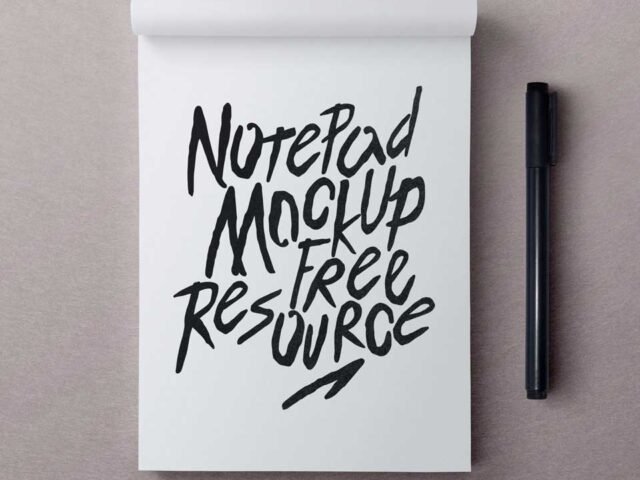
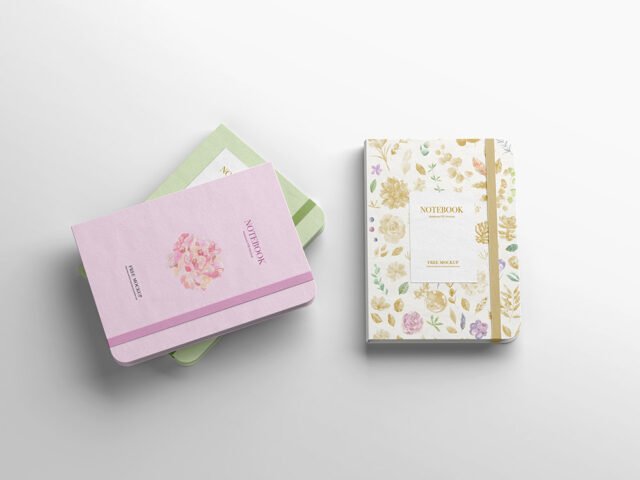
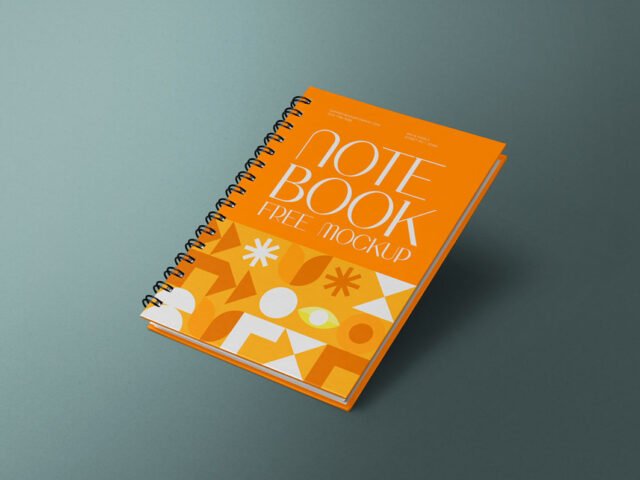
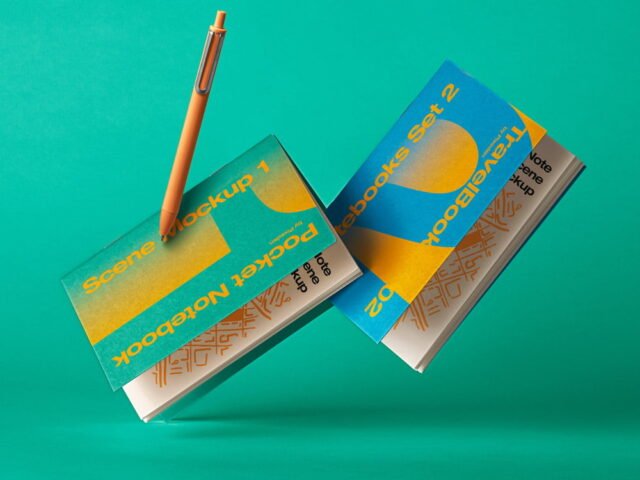
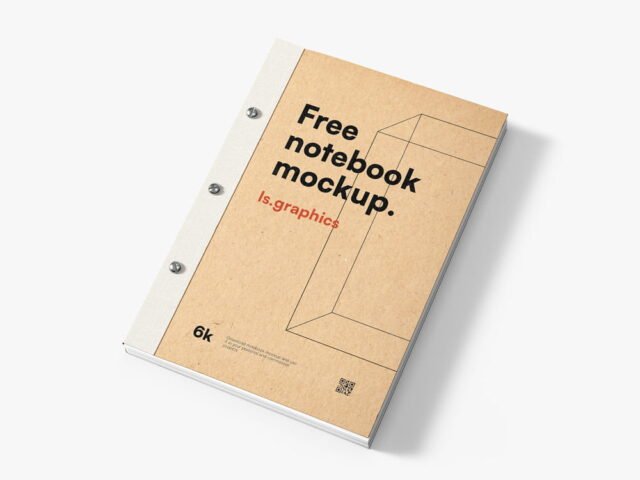
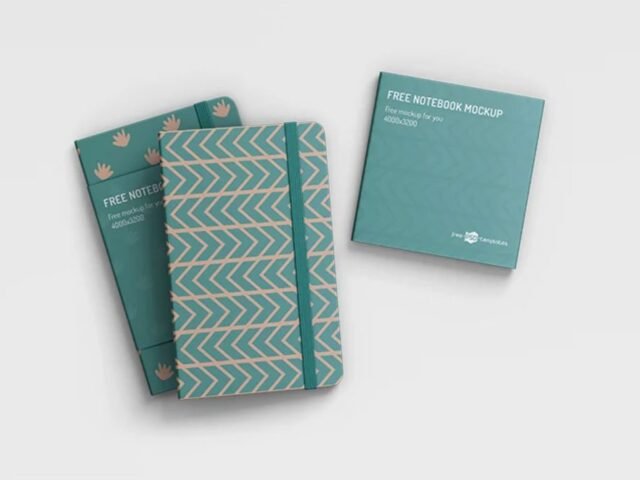
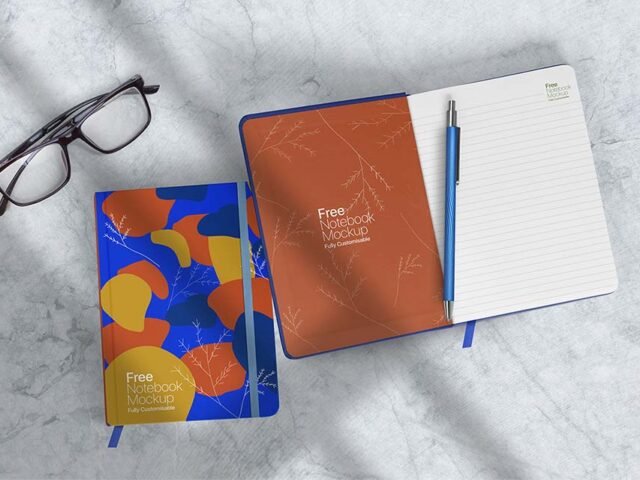
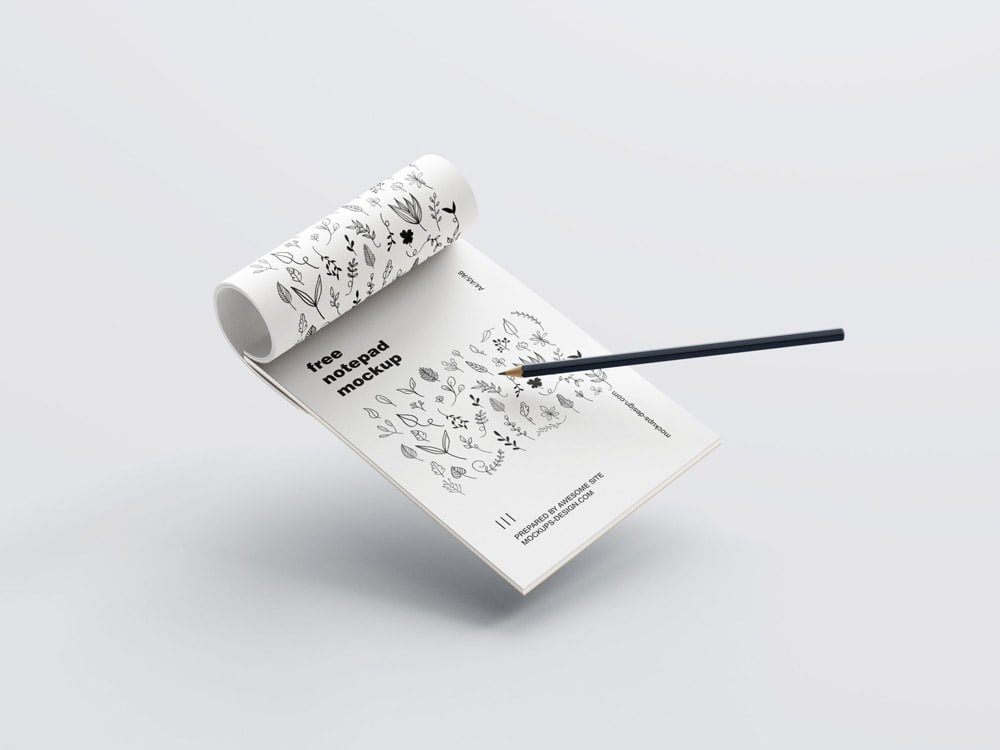
A notepad mockup, made for presenting a planner design. Drop in your artwork and the lighting and shadows stay as they are.
It’s a handy file for stationery brands and Etsy sellers. Quick tip: export your artwork at the size the smart object asks for; scaling a small file up is the usual reason print mockups look soft.
Clients sign off faster when they can picture the finished piece, and a flat PDF rarely does that as well as a photo of the notebook.
Use it for
- A planner design
- A branded cover
- A journal cover
Credit goes to Mockups Design. We link to their download page rather than re-uploading the file, so check their terms there before commercial use.
Editable options in the Notepad Mockups PSD
Main things you can change in Photoshop:
- Your design, placed through the smart object
- Paper texture you can turn up or down
- Shadows and highlights on their own layers
Editing the Notepad Mockups, step by step
- Get your artwork ready at print size, with 1/8 inch of bleed if it runs to the edge.
- Open the file in Photoshop and double-click the smart object thumbnail in the Layers panel.
- Drop your artwork in, fit it to the canvas, save and close. The mockup updates by itself.
- Turn the texture layer up or down to match the paper you’ll print on.
- Export with File › Export › Export As: JPG for sharing, PNG for the web.
Use CMYK-friendly colours in the artwork itself, even though the mockup is RGB, so what the client sees is close to print.
Ways to use this Notepad Mockups
- Show a planner design to a client before it goes to print or production.
- Make two or three colour versions of a journal cover and let the client pick.
- Use it as the cover image for a branded cover in your portfolio.
Before you download
- Made by Mockups Design. The download size and format are listed on their page.
- Some free mockups ask for credit when you post them. A short line in your caption is enough.
- Built for Adobe Photoshop. A recent CC version handles the smart objects best.
- The preview shows the angle, background and lighting you’ll get.
Scroll down for similar notebook mockups from other designers.
Questions about this mockup
Can I use this notebook mockup for client work?
That depends on the author's terms. The download page lists what is allowed; when in doubt, ask the author directly.
How do I put my artwork on the notebook?
Find the smart object layer (it has a small icon on its thumbnail), double-click it, place your design, then save and close that tab.
Which Photoshop version do I need?
A recent Photoshop CC version is best. Older versions can open the file but sometimes have trouble with smart objects and effects.
Can I show both sides?
It depends on the file. Many print mockups include a front and a back smart object; the preview usually shows whether both sides are visible.