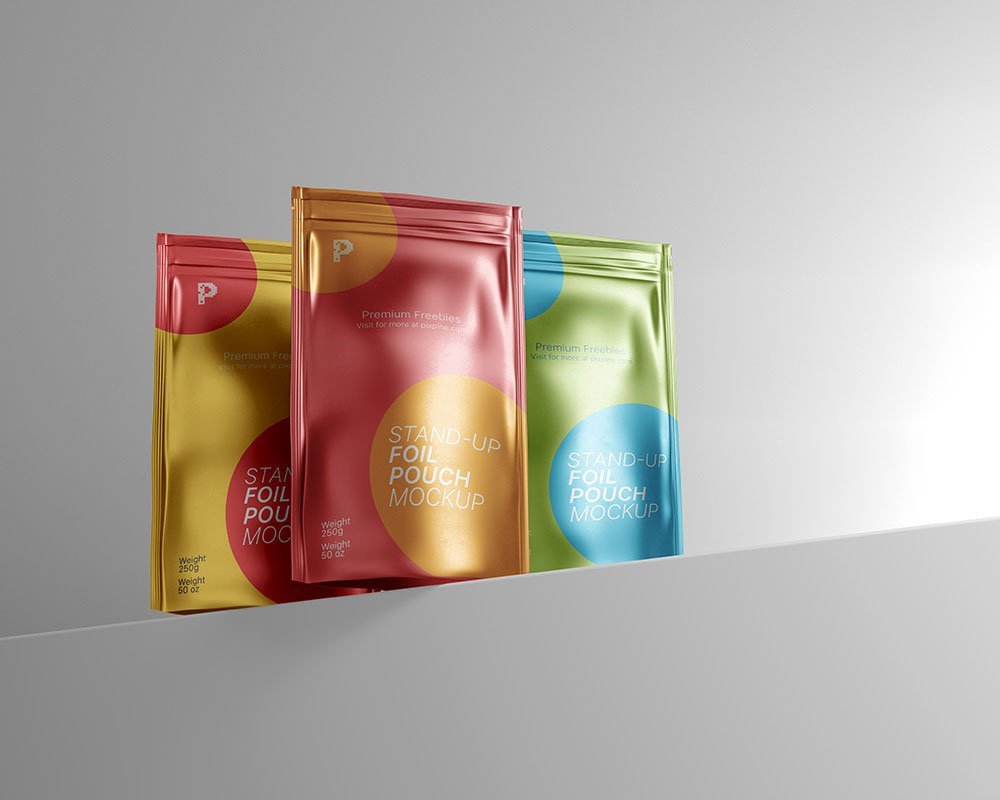
Stand-up Foil Pouch Mockup
What's inside
- Applications Photoshop
- File Types PSD
- License Free (see author's terms)
- Author Pixpine
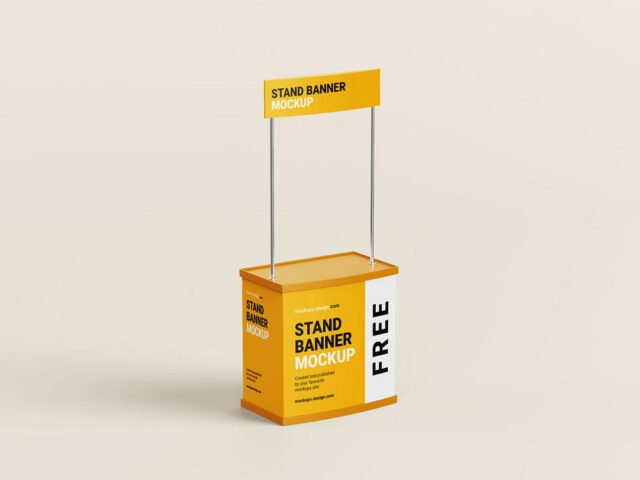
If you’re presenting a trade show booth, this stand-up foil pouch mockup makes the idea feel real before anything is produced.
Packaging designers and exhibitors tend to get the most out of files like this. Tip: outdoor ads are read in a second or two. Big type and one image will look far better in this scene than a busy layout.
Showing a campaign in context helps clients see the scale; a design that feels loud on a laptop can look quiet on the street. Show the same visual on a billboard and a flyer to present a consistent campaign.
The file is made by Pixpine. The download button takes you to their page, where you get the original file and the licence details.
Editable options in the Stand-up Foil Pouch Mockup PSD
The PSD is layered, so you can change:
- Ad artwork, placed through the smart object
- Glow layer for backlit scenes, where included
- Lighting and shadow layers
Add your design to the Stand-up Foil Pouch Mockup
- Export the ad artwork large so it stays sharp in the scene.
- Open the file in Photoshop and double-click the smart object thumbnail in the Layers panel.
- Paste your design, resize it to fill the area, then save (Ctrl/Cmd + S) and close that tab.
- Check the crop so faces and logos stay inside the frame.
- Export a full-size image for your portfolio and a smaller one for social media.
One more thing: check your artwork’s aspect ratio against the smart object before you start, or faces and logos get cropped.
Ways to use this Stand-up Foil Pouch Mockup
- Show a trade show booth to a client before it goes to print or production.
- Present a counter design in a client proposal or brand guide.
- Share a point-of-sale display on Instagram, Behance or Dribbble with a real-looking preview.
Good to know
- Made by Pixpine. The download size and format are listed on their page.
- Some free mockups ask for credit when you post them. A short line in your caption is enough.
- Check the smart object size before you design, so your artwork fits without stretching.
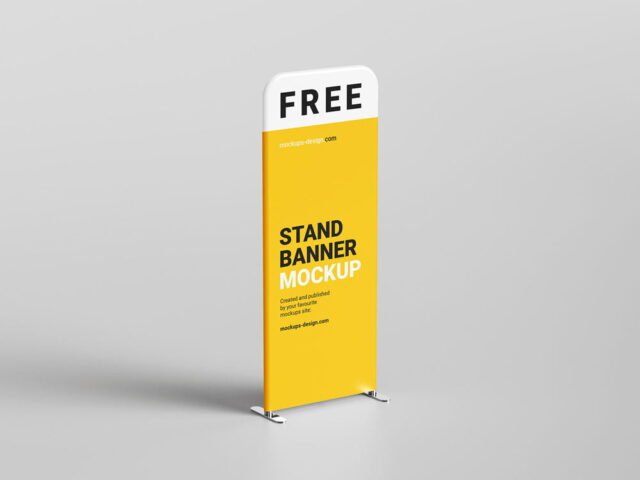
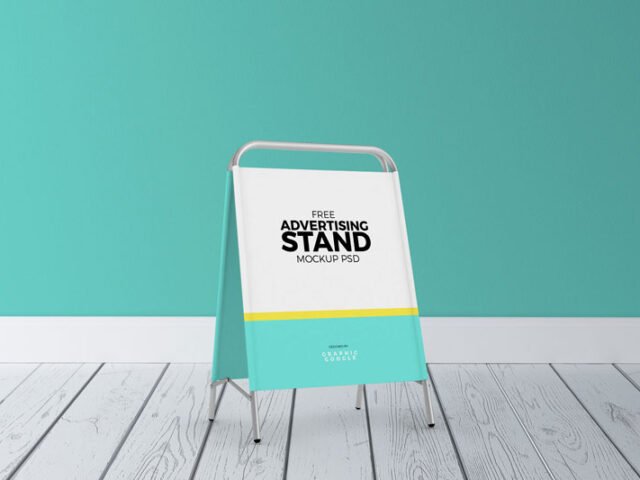
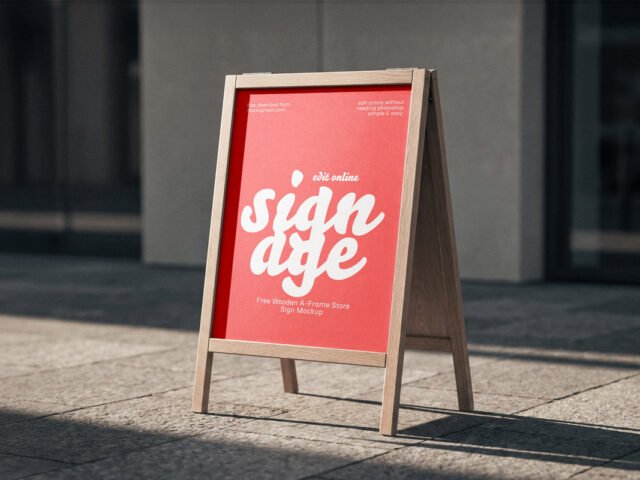
- The preview shows the angle, background and lighting you’ll get.
More free stand mockups are listed below, each linking to the original author.
Questions about this mockup
What licence does it come with?
It's free to download, but the licence belongs to Pixpine. Check their page: it states whether commercial use is allowed and if attribution is needed.
How do I add my design?
Open the file in Photoshop, double-click the smart object thumbnail, paste or place your artwork in the new tab, save it (Ctrl/Cmd + S) and close. The main file updates on its own.
Which Photoshop version do I need?
A recent Photoshop CC version is best. Older versions can open the file but sometimes have trouble with smart objects and effects.
What ratio should my artwork be?
Open the smart object and check its canvas; design to that ratio. Most outdoor mockups use common print ratios, but it varies from file to file.