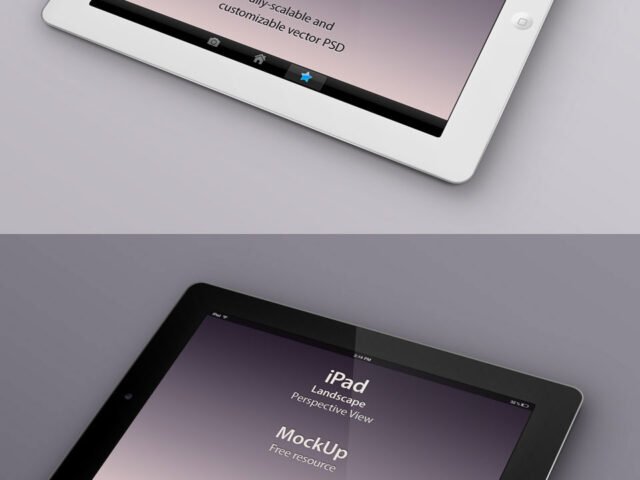
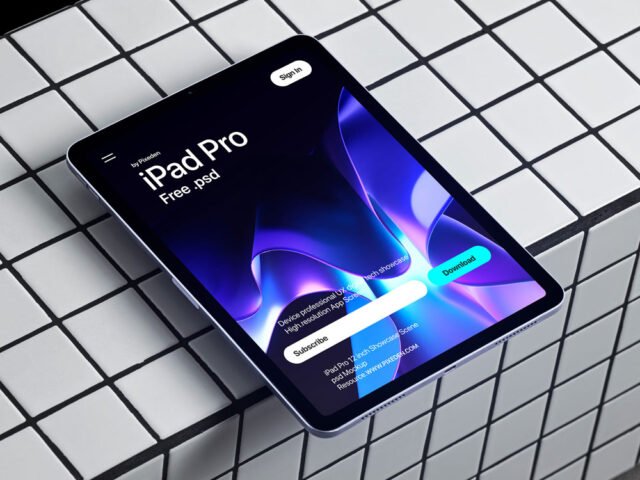
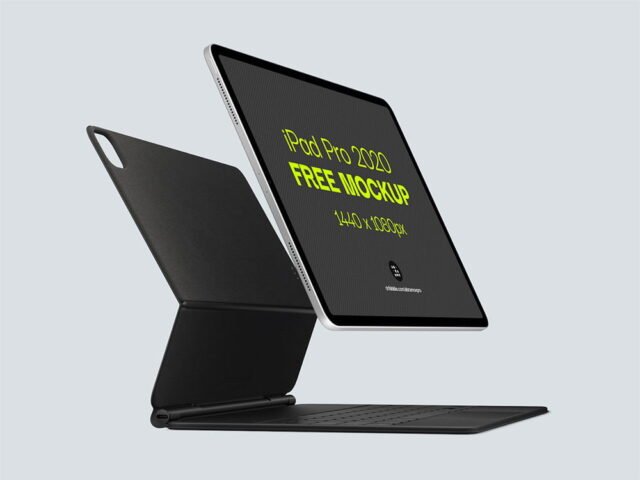
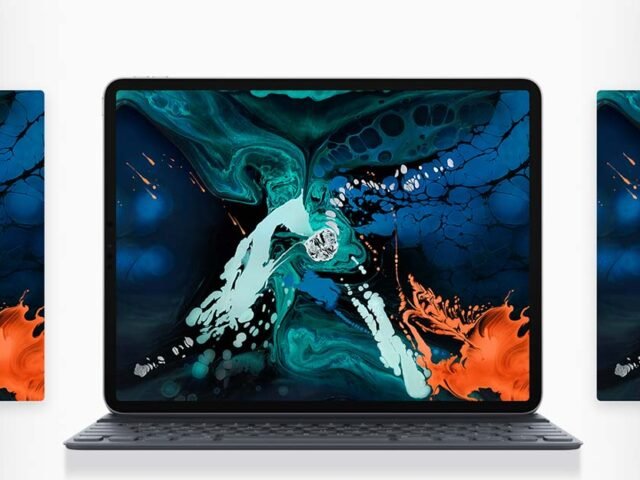
White Ipad Pro Mockup
What's inside
- Applications Photoshop
- File Types PSD
- License Free (see author's terms)
- Author Dribbble
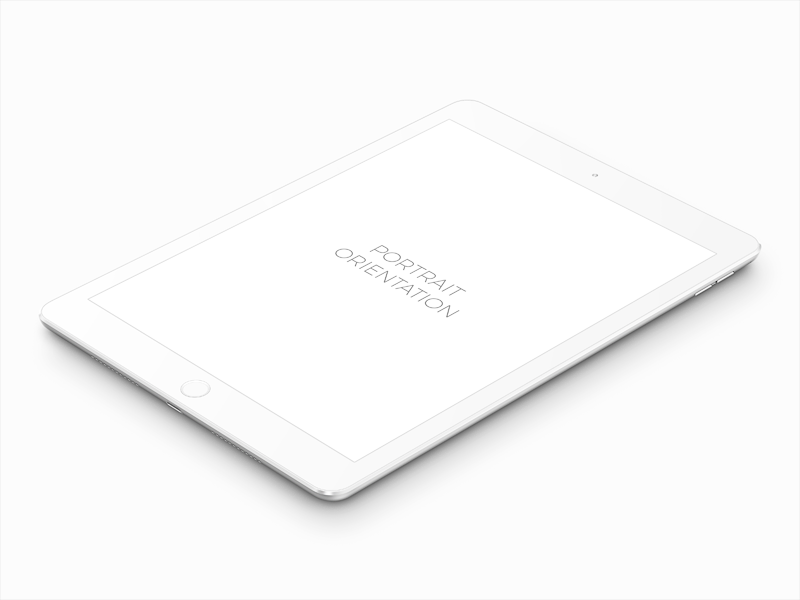
This white iPad Pro mockup is a quick way to show a tablet app without a photo shoot.
It’s a handy file for product teams and publishers. Make your screen design at the exact pixel size of the smart object, otherwise text on the screen turns blurry.
A screen inside a real device frame explains a product faster than a raw screenshot, which is why it shows up on so many landing pages and app store listings.
Credit goes to a designer on Dribbble. We link to their download page rather than re-uploading the file, so check their terms there before commercial use.
White Ipad Pro Mockup: editable parts
The PSD is layered, so you can change:
- Screen design, placed through the smart object
- Shadow under the device
- Screen glare and reflection layers
How to use the White Ipad Pro Mockup
- Pick one strong screen. It reads better than a crowded one.
- Open the PSD in Photoshop and find the smart object layer, usually named “Your Design” or “Place Here”.
- Drop your artwork in, fit it to the canvas, save and close. The mockup updates by itself.
- Hide the reflection layer for a flatter look.
- Export with File › Export › Export As: JPG for sharing, PNG for the web.
Turn the screen glare layer down if your UI has small type. Glare looks nice but hides detail.
Best uses for this White Ipad Pro Mockup
- Show a digital magazine page on your online shop or product page.
- Present an e-learning screen in a client proposal or brand guide.
- Share a dashboard on Instagram, Behance or Dribbble with a real-looking preview.
Good to know
- Made by a designer on Dribbble. The download size and format are listed on their page.
- The preview shows the angle, background and lighting you’ll get.
- Check the licence on the author’s page. Personal and commercial terms differ from file to file.
More free ipad mockups are listed below, each linking to the original author.
Questions about this mockup
What licence does it come with?
That depends on the author's terms. The download page lists what is allowed; when in doubt, ask the author directly.
How do I add my design?
Open the file in Photoshop, double-click the smart object thumbnail, paste or place your artwork in the new tab, save it (Ctrl/Cmd + S) and close. The main file updates on its own.
Which Photoshop version do I need?
A recent Photoshop CC version is best. Older versions can open the file but sometimes have trouble with smart objects and effects.
What size should my screenshot be?
Open the screen smart object and check its canvas size in Image › Canvas Size. Paste your screenshot at that size so it stays sharp.