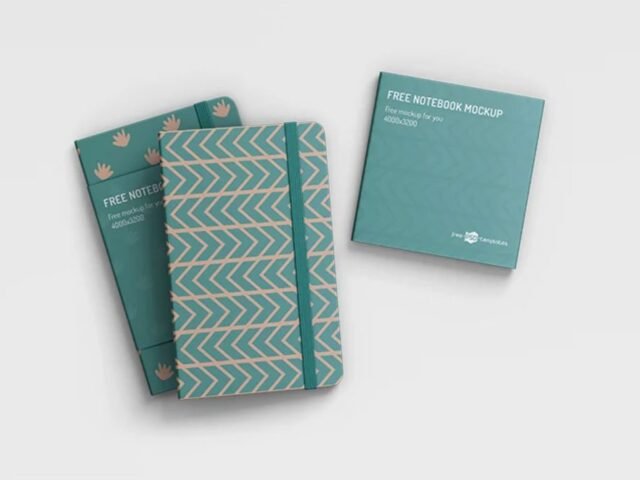
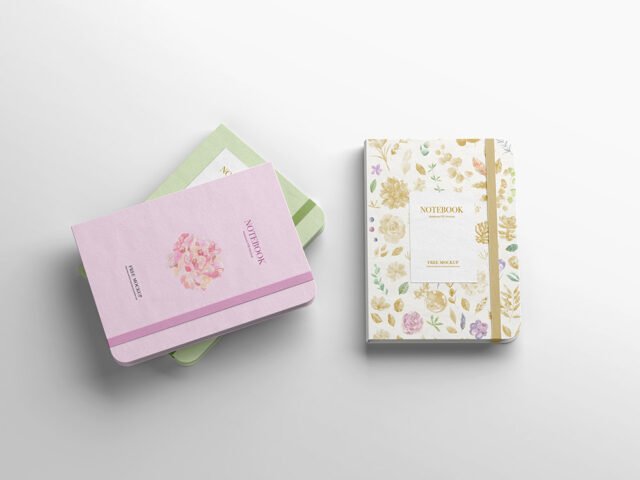
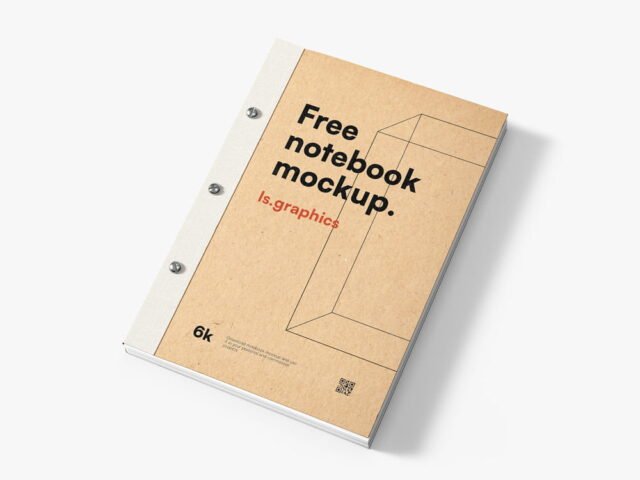
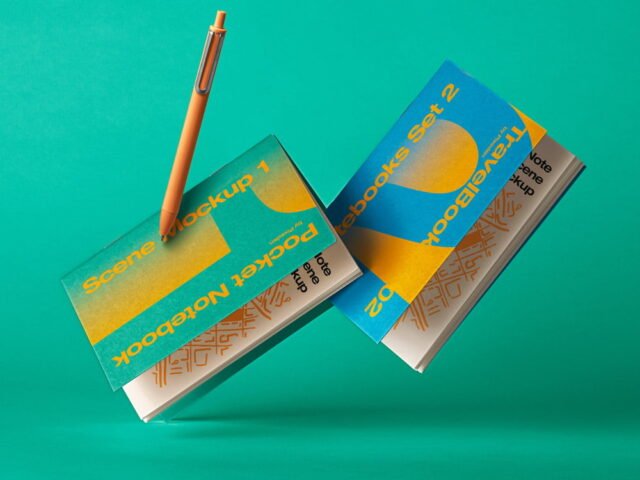
Open Notebook Mockup
What's inside
- Applications Photoshop
- File Types PSD
- License Free (see author's terms)
- Author Pixpine
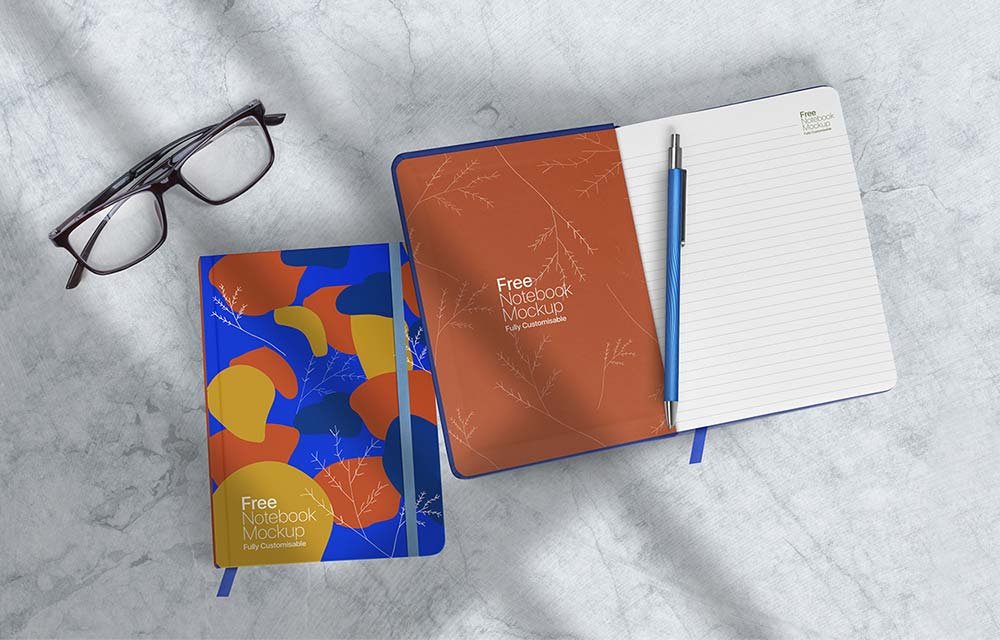
Presenting a planner design? Put it on this open notebook mockup and the client sees the real thing, not a flat file.
Useful for stationery brands as much as for corporate gift designers. Use CMYK-friendly colours in the artwork itself, even though the mockup is RGB, so what the client sees is close to print.
It also makes a good cover image for a Behance or Dribbble post, where the first thumbnail decides whether anyone clicks.
Works well for
- A planner design
- A branded cover
- A journal cover
Pixpine created this one and hosts the download on their own site, so you always get the latest version straight from the source.
Editable options in the Open Notebook Mockup PSD
Main things you can change in Photoshop:
- Your design, placed through the smart object
- Paper texture you can turn up or down
- Front and back artwork, where both sides are shown
- Paper or background colour
Editing the Open Notebook Mockup, step by step
- Set up the design flat at the real print size and keep text inside a safe margin.
- Open the file in Photoshop and double-click the smart object thumbnail in the Layers panel.
- Place your design, hide the sample artwork, save, and go back to the main file.
- Export with File › Export › Export As: JPG for sharing, PNG for the web.
Worth remembering: dark designs often look flat on paper mockups. Turning the highlight layer up slightly brings back the sheen.
Best uses for this Open Notebook Mockup
- Show a journal cover to a client before it goes to print or production.
- Show a branded cover on your online shop or product page.
- Make two or three colour versions of a planner design and let the client pick.
Quick notes on this mockup
- Made by Pixpine. The download size and format are listed on their page.
- Check the smart object size before you design, so your artwork fits without stretching.
- Some free mockups ask for credit when you post them. A short line in your caption is enough.
Browse more free notebook mockups on Artistic Orbit, with new files added every day.
Questions about this mockup
Is it free for commercial use?
That depends on the author's terms. The download page lists what is allowed; when in doubt, ask the author directly.
How do I put my artwork on the notebook?
Find the smart object layer (it has a small icon on its thumbnail), double-click it, place your design, then save and close that tab.
Do I need Photoshop?
Yes. This is a PSD mockup built with smart objects, so you edit it in Adobe Photoshop. Any recent CC version works.
Can I show both sides?
It depends on the file. Many print mockups include a front and a back smart object; the preview usually shows whether both sides are visible.