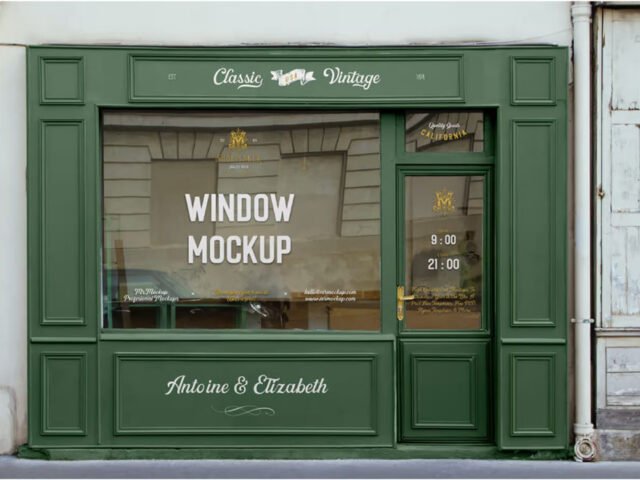
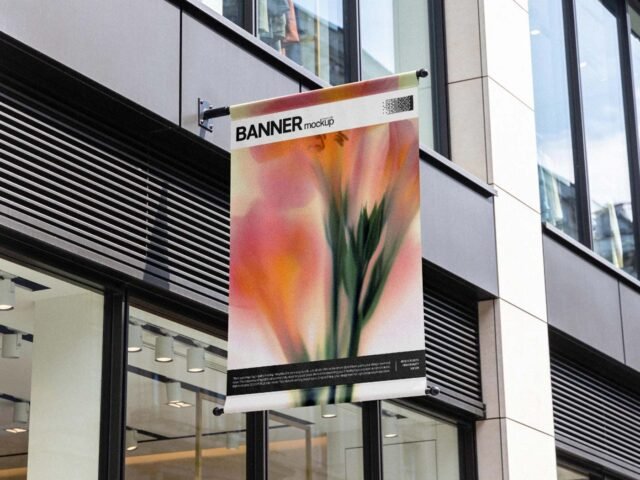
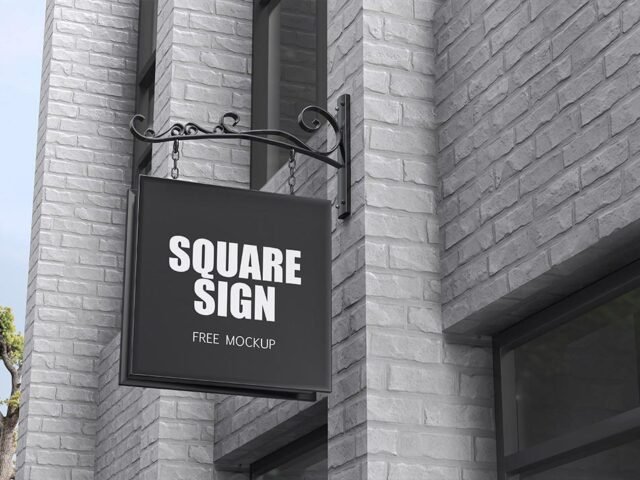
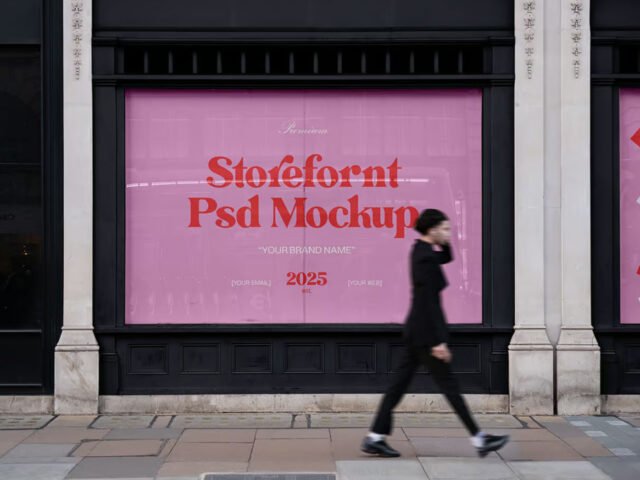
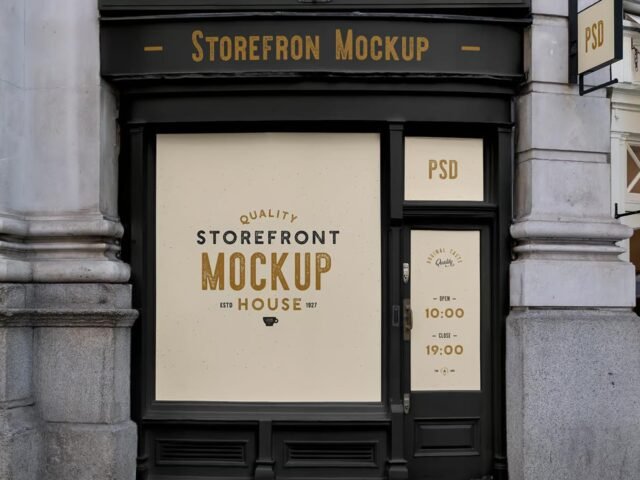
Shop Sign Mockup
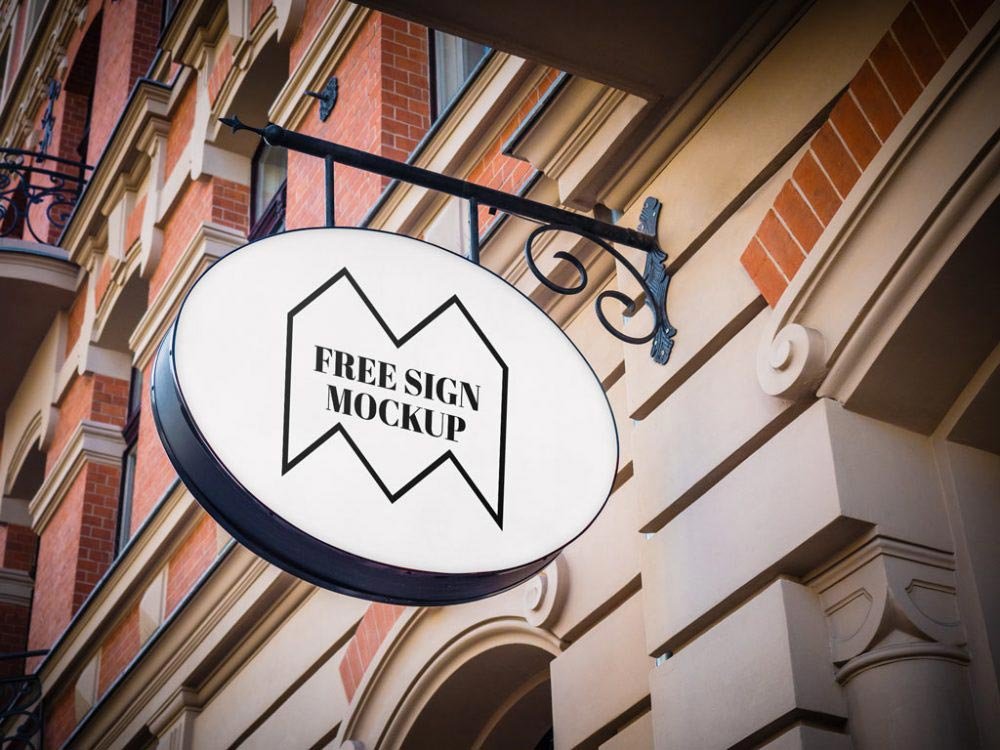
What's inside
- Applications Photoshop
- File Types PSD
- License Free (see author's terms)
- Author Mockups Design
If you’re presenting a new store identity, this shop sign mockup makes the idea feel real before anything is produced.
Café owners and branding studios tend to get the most out of files like this. Quick tip: check your artwork’s aspect ratio against the smart object before you start, or faces and logos get cropped.
Showing a campaign in context helps clients see the scale; a design that feels loud on a laptop can look quiet on the street. Combine it with a poster or bus stop ad to show the campaign across several placements.
Credit goes to Mockups Design. We link to their download page rather than re-uploading the file, so check their terms there before commercial use.
What’s inside the Shop Sign Mockup PSD
Open it in Photoshop and you can change:
- Ad artwork, placed through the smart object
- Lighting and shadow layers
- Glow layer for backlit scenes, where included
- Brightness to match the scene
Editing the Shop Sign Mockup, step by step
- Keep the ad simple: one image, a short headline and the logo.
- In the Layers panel, find the layer with the small smart object icon and double-click it.
- Drop your artwork in, fit it to the canvas, save and close. The mockup updates by itself.
- Check the crop so faces and logos stay inside the frame.
- Export with File › Export › Export As: JPG for sharing, PNG for the web.
Worth remembering: match the brightness of your design to the scene; a very bright graphic in a shaded spot looks pasted in.
Ways to use this Shop Sign Mockup
- Show opening hours to a client before it goes to print or production.
- Show a new store identity on your online shop or product page.
- Make two or three colour versions of a shop sign and let the client pick.
Quick notes on this mockup
- Made by Mockups Design. The download size and format are listed on their page.
- Check the smart object size before you design, so your artwork fits without stretching.
- Check the licence on the author’s page. Personal and commercial terms differ from file to file.
- Some free mockups ask for credit when you post them. A short line in your caption is enough.
More free storefront mockups are listed below, each linking to the original author.
Questions about this mockup
Can I use this storefront mockup for client work?
Mockups Design sets the licence, and it can differ from file to file. Many free files allow personal and commercial use, but some are personal-only or ask for credit. Read the terms on the download page before a paid project.
How do I add my design?
Open the file in Photoshop, double-click the smart object thumbnail, paste or place your artwork in the new tab, save it (Ctrl/Cmd + S) and close. The main file updates on its own.
Do I need Photoshop?
Yes. This is a PSD mockup built with smart objects, so you edit it in Adobe Photoshop. Any recent CC version works.
What ratio should my artwork be?
Open the smart object and check its canvas; design to that ratio. Most outdoor mockups use common print ratios, but it varies from file to file.