Restaurant Menu Mockup
What's inside
- Applications Photoshop
- File Types PSD
- License Free (see author's terms)
- Author Zippypixels
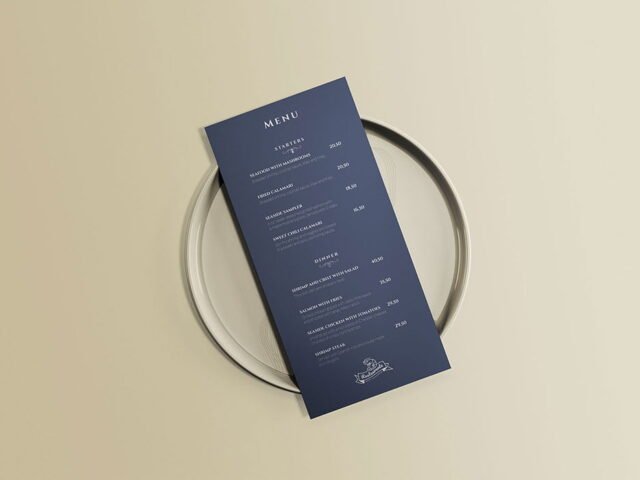
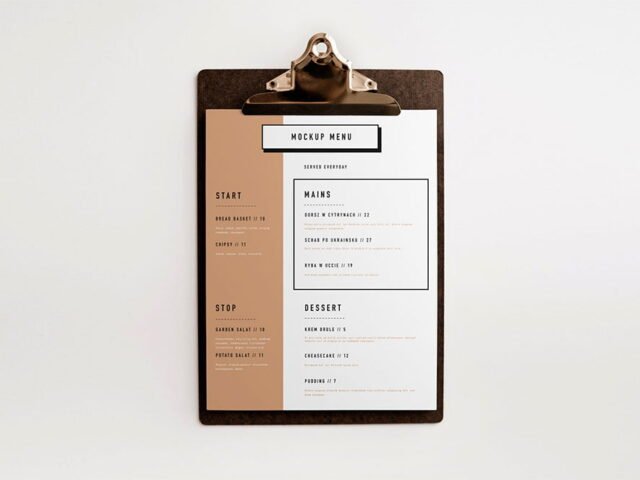
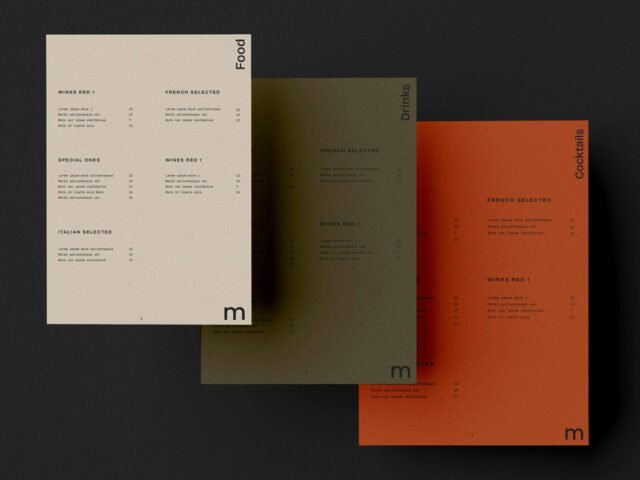
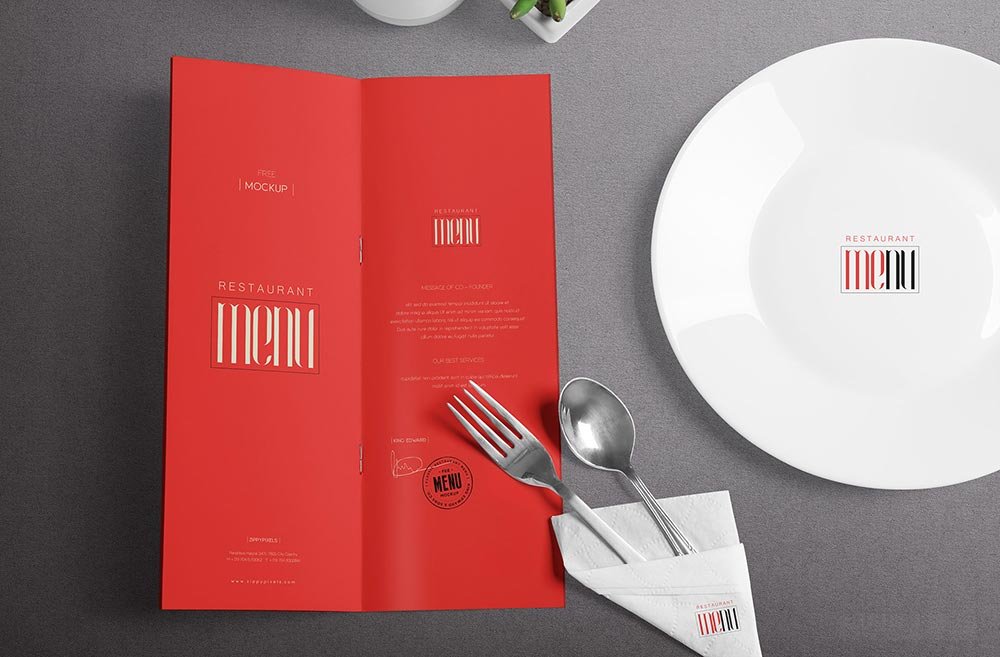
A restaurant menu mockup, made for presenting a restaurant menu. Drop in your artwork and the lighting and shadows stay as they are.
Useful for restaurants as much as for hospitality designers. Menus are read up close, so check prices and dish names at 100% zoom in the final export.
Clients sign off faster when they can picture the finished piece, and a flat PDF rarely does that as well as a photo of the menu. For a complete brand board, show it next to a business card and a notebook.
Zippypixels created this one and hosts the download on their own site, so you always get the latest version straight from the source.
Editable options in the Restaurant Menu Mockup PSD
Main things you can change in Photoshop:
- Your design, placed through the smart object
- Front and back artwork, where both sides are shown
- Paper or background colour
How to use the Restaurant Menu Mockup
- Get your artwork ready at print size, with 3 mm of bleed if it runs to the edge.
- Open the file in Photoshop and double-click the smart object thumbnail in the Layers panel.
- Drop your artwork in, fit it to the canvas, save and close. The mockup updates by itself.
- Export a full-size image for your portfolio and a smaller one for social media.
Another tip: export your artwork at the size the smart object asks for; scaling a small file up is the usual reason print mockups look soft.
Where the Restaurant Menu Mockup works best
- Share a restaurant menu on Instagram, Behance or Dribbble with a real-looking preview.
- Make two or three colour versions of a café drinks list and let the client pick.
- Use it as the cover image for a bar menu in your portfolio.
Quick notes on this mockup
- Made by Zippypixels. The download size and format are listed on their page.
- Built for Adobe Photoshop. A recent CC version handles the smart objects best.
- Check the licence on the author’s page. Personal and commercial terms differ from file to file.
- Check the smart object size before you design, so your artwork fits without stretching.
More free menu mockups are listed below, each linking to the original author.
Questions about this mockup
Can I use this menu mockup for client work?
That depends on the author's terms. The download page lists what is allowed; when in doubt, ask the author directly.
How do I put my artwork on the menu?
Find the smart object layer (it has a small icon on its thumbnail), double-click it, place your design, then save and close that tab.
Do I need Photoshop?
Yes. This is a PSD mockup built with smart objects, so you edit it in Adobe Photoshop. Any recent CC version works.
Can I show both sides?
It depends on the file. Many print mockups include a front and a back smart object; the preview usually shows whether both sides are visible.