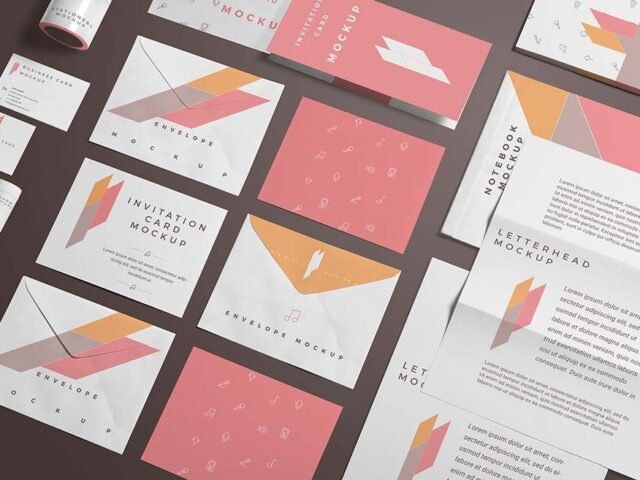
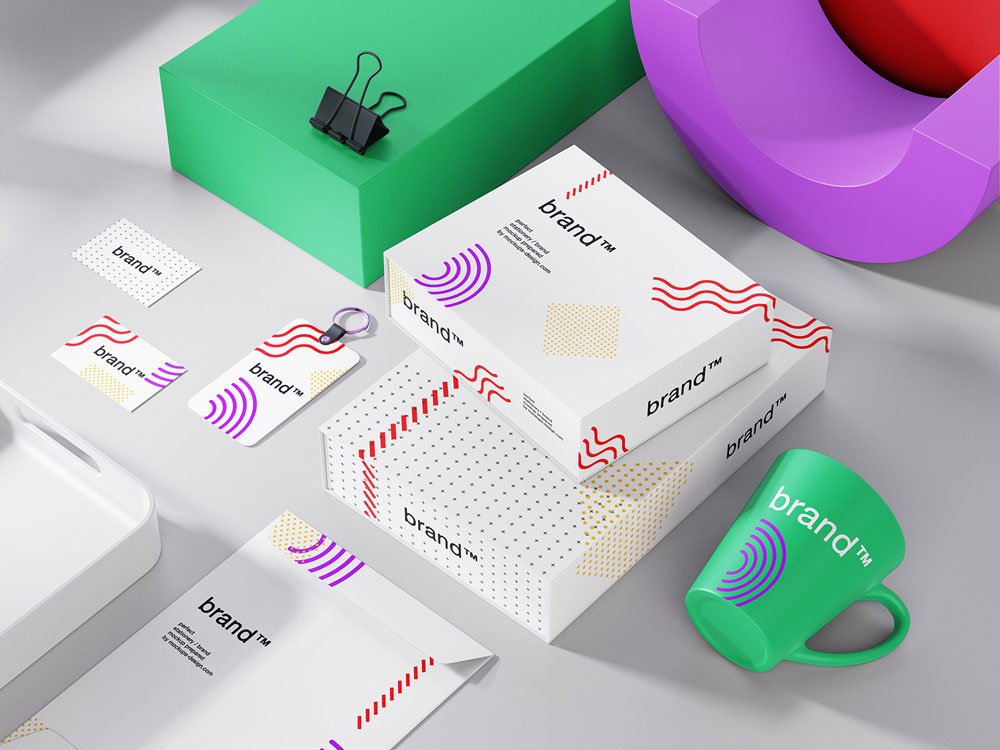
Colorful Branding Stationery Mockup
What's inside
- Applications Photoshop
- File Types PSD
- License Free (see author's terms)
- Author Mockups Design
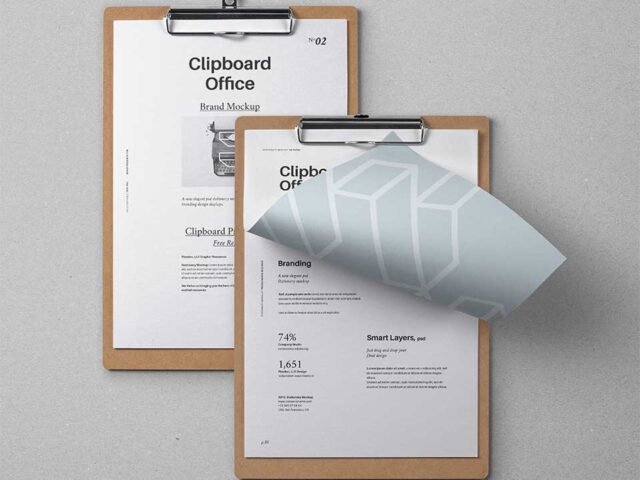
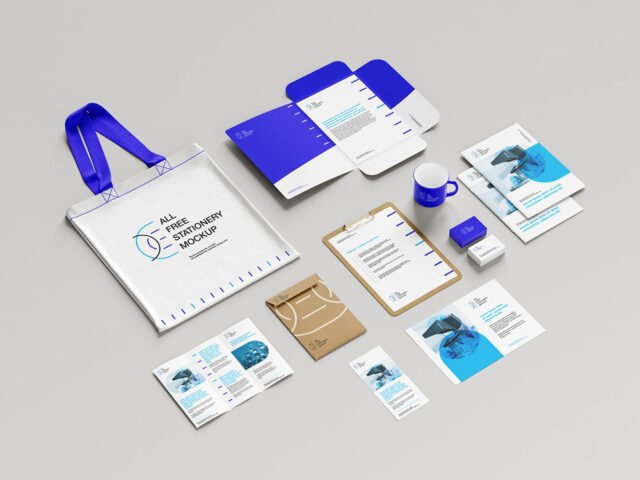
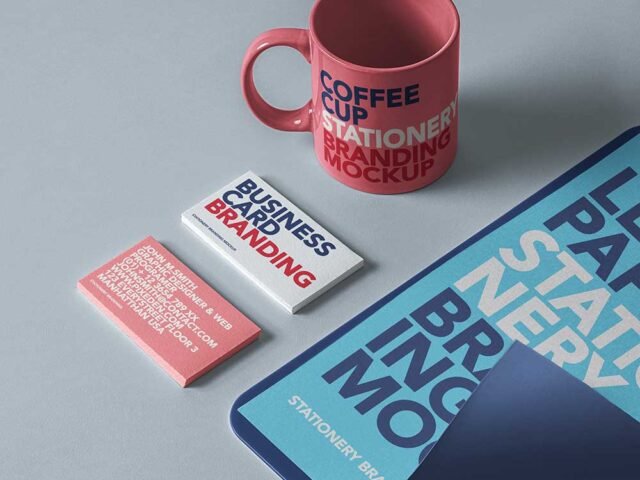
This colorful branding stationery mockup is one of the simpler ways to present letterhead, card and envelope or a full brand identity convincingly.
It’s a handy file for design students and freelance designers. Tip: if the paper has texture, drop the opacity of your art by a few percent so the grain shows through.
Print jobs are expensive to redo, so a realistic preview before the order goes out is cheap insurance. For a complete brand board, show it next to a business card and a notebook.
The file is made by Mockups Design. The download button takes you to their page, where you get the original file and the licence details.
What you can edit in this Colorful Branding Stationery Mockup
The PSD is layered, so you can change:
- Your design, placed through the smart object
- Paper texture you can turn up or down
- Front and back artwork, where both sides are shown
How to use the Colorful Branding Stationery Mockup
- Get your artwork ready at print size, with 1/8 inch of bleed if it runs to the edge.
- Open the file in Photoshop and double-click the smart object thumbnail in the Layers panel.
- Place your design, hide the sample artwork, save, and go back to the main file.
- Save a JPG for clients and social media, and keep the PSD for later changes.
Use CMYK-friendly colours in the artwork itself, even though the mockup is RGB, so what the client sees is close to print.
Where the Colorful Branding Stationery Mockup works best
- Use it as the cover image for a brand guideline cover in your portfolio.
- Make two or three colour versions of a full brand identity and let the client pick.
- Present letterhead, card and envelope in a client proposal or brand guide.
Good to know
- Made by Mockups Design. The download size and format are listed on their page.
- Check the smart object size before you design, so your artwork fits without stretching.
- Built for Adobe Photoshop. A recent CC version handles the smart objects best.
- Check the licence on the author’s page. Personal and commercial terms differ from file to file.
Scroll down for similar stationery mockups from other designers.
Questions about this mockup
What licence does it come with?
That depends on the author's terms. The download page lists what is allowed; when in doubt, ask the author directly.
How do I add my design?
Open the file in Photoshop, double-click the smart object thumbnail, paste or place your artwork in the new tab, save it (Ctrl/Cmd + S) and close. The main file updates on its own.
Which Photoshop version do I need?
A recent Photoshop CC version is best. Older versions can open the file but sometimes have trouble with smart objects and effects.
Can I show both sides?
It depends on the file. Many print mockups include a front and a back smart object; the preview usually shows whether both sides are visible.