Van Mockup PSD
What's inside
- Applications Photoshop
- File Types PSD
- License Free (see author's terms)
- Author GraphicBurger
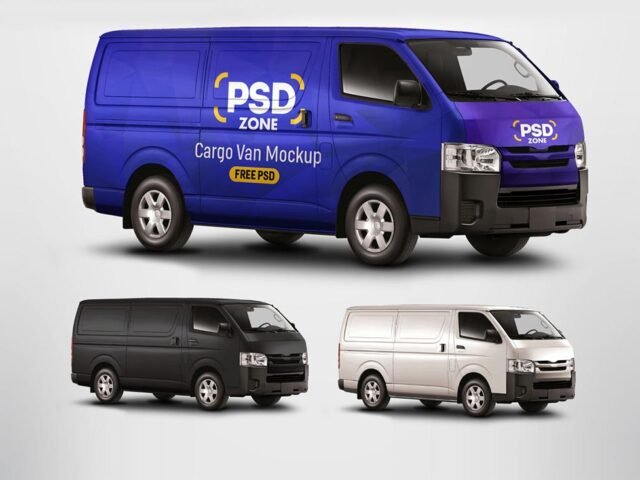
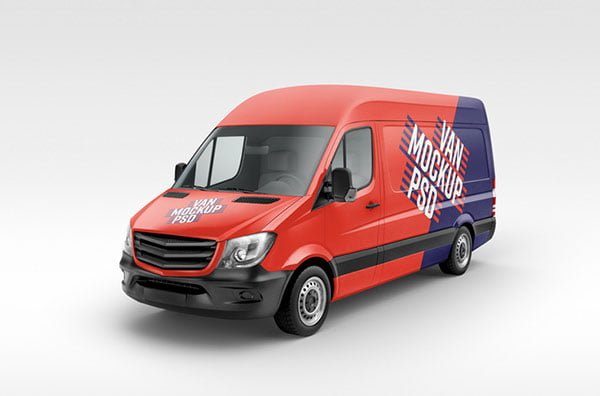
Here’s a van mockup that works well for a food business wrap, a company livery and similar projects.
Good pick for delivery companies, wrap designers or anyone putting together a portfolio. Tip: van sides have doors, handles and panel lines; keep phone numbers and logos away from them.
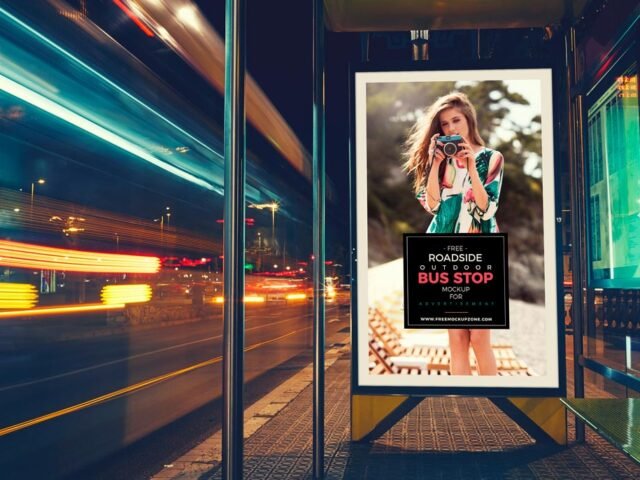
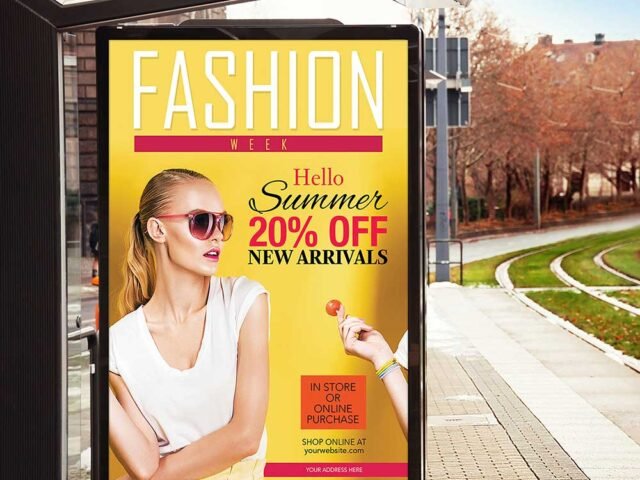
Showing a campaign in context helps clients see the scale; a design that feels loud on a laptop can look quiet on the street. Combine it with a poster or bus stop ad to show the campaign across several placements.
Good for
- A food business wrap
- A company livery
- A delivery van wrap
GraphicBurger created this one and hosts the download on their own site, so you always get the latest version straight from the source.
Editable options in the Van Mockup PSD
Open it in Photoshop and you can change:
- Ad artwork, placed through the smart object
- Lighting and shadow layers
- Glow layer for backlit scenes, where included
How to use the Van Mockup
- Export the ad artwork large so it stays sharp in the scene.
- Open the file in Photoshop and double-click the smart object thumbnail in the Layers panel.
- Place your design, hide the sample artwork, save, and go back to the main file.
- Match the ad’s brightness to the scene with the lighting layers.
- Export with File › Export › Export As: JPG for sharing, PNG for the web.
Outdoor ads are read in a second or two. Big type and one image will look far better in this scene than a busy layout.
Where the Van Mockup works best
- Show a company livery to a client before it goes to print or production.
- Make two or three colour versions of a delivery van wrap and let the client pick.
- Share a food business wrap on Instagram, Behance or Dribbble with a real-looking preview.
Quick notes on this mockup
- Made by GraphicBurger. The download size and format are listed on their page.
- Built for Adobe Photoshop. A recent CC version handles the smart objects best.
- Check the smart object size before you design, so your artwork fits without stretching.
- Check the licence on the author’s page. Personal and commercial terms differ from file to file.
More free van car mockups are listed below, each linking to the original author.
Questions about this mockup
What licence does it come with?
That depends on the author's terms. The download page lists what is allowed; when in doubt, ask the author directly.
How do I put my artwork on the van?
Find the smart object layer (it has a small icon on its thumbnail), double-click it, place your design, then save and close that tab.
Which Photoshop version do I need?
A recent Photoshop CC version is best. Older versions can open the file but sometimes have trouble with smart objects and effects.
Can I change the surroundings?
Usually only lighting and shadows are adjustable. The street, sky or building are part of the photo.