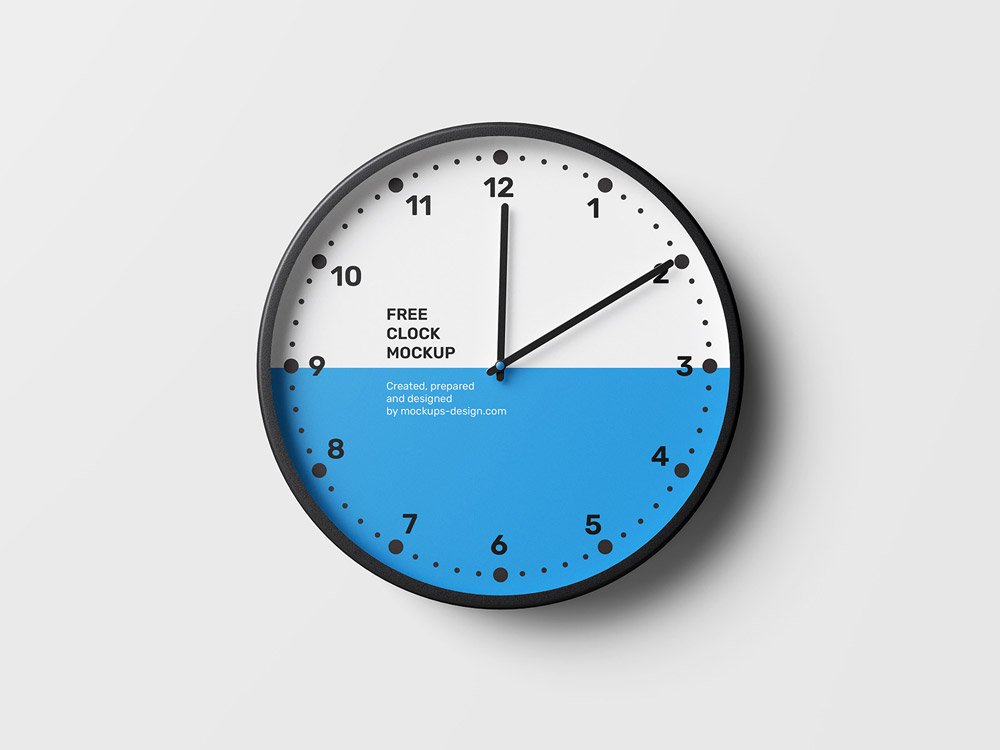
Wall Clock Mockup PSD
What's inside
- Applications Photoshop
- File Types PSD
- License Free (see author's terms)
- Author Mockups Design
Show merch branding the way it will actually look: on a wall clock mockup.
Useful for product designers as much as for merch brands. One thing worth knowing: keep your artwork simple. Small objects shrink details quickly, so a bold mark reads better than fine lines.
Merch and gift ideas are much easier to approve when people can see them on the real object. Group it with other merch mockups for a branded items slide.
Good for
- Merch branding
- A small logo
- A pattern
This is a free file from Mockups Design. When you click download you’ll land on their page to grab it.
Wall Clock Mockup: editable parts
Main things you can change in Photoshop:
- Logo or artwork, placed through the smart object
- Background colour
- Shadows
- Object colour, where included
Editing the Wall Clock Mockup, step by step
- Export your logo or artwork as a PNG with transparency.
- Open the file in Photoshop and double-click the smart object thumbnail in the Layers panel.
- Drop your artwork in, fit it to the canvas, save and close. The mockup updates by itself.
- Export with File › Export › Export As: JPG for sharing, PNG for the web.
One more thing: use a PNG with transparency for logos so the material around them keeps its texture.
Ways to use this Wall Clock Mockup
- Make two or three colour versions of a small logo and let the client pick.
- Present a pattern in a client proposal or brand guide.
- Show merch branding on your online shop or product page.
Good to know
- Made by Mockups Design. The download size and format are listed on their page.
- Check the licence on the author’s page. Personal and commercial terms differ from file to file.
- Built for Adobe Photoshop. A recent CC version handles the smart objects best.
More free accessories mockups are listed below, each linking to the original author.
Questions about this mockup
Can I use this accessory mockup for client work?
That depends on the author's terms. The download page lists what is allowed; when in doubt, ask the author directly.
How do I put my artwork on the accessory?
Find the smart object layer (it has a small icon on its thumbnail), double-click it, place your design, then save and close that tab.
Which Photoshop version do I need?
A recent Photoshop CC version is best. Older versions can open the file but sometimes have trouble with smart objects and effects.
Can I change the background?
Most object mockups have a background colour or image layer at the bottom of the stack that you can swap.