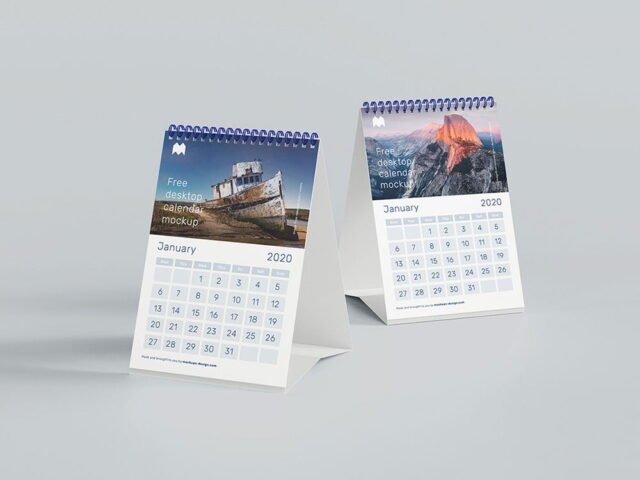
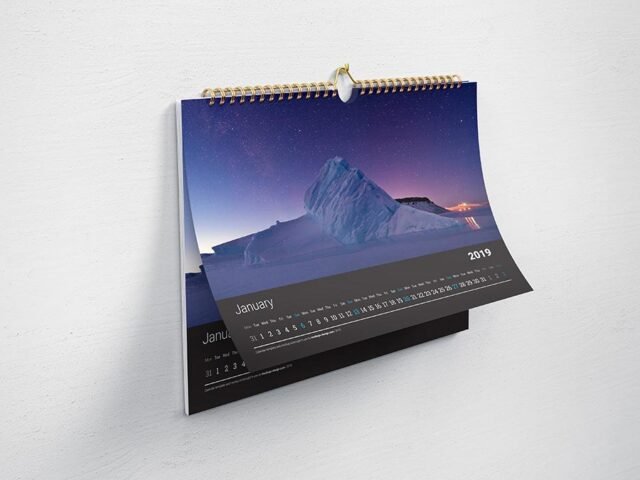
Wall Horizontal Calendar Mockup
What's inside
- Applications Photoshop
- File Types PSD
- License Free (see author's terms)
- Author Pixpine
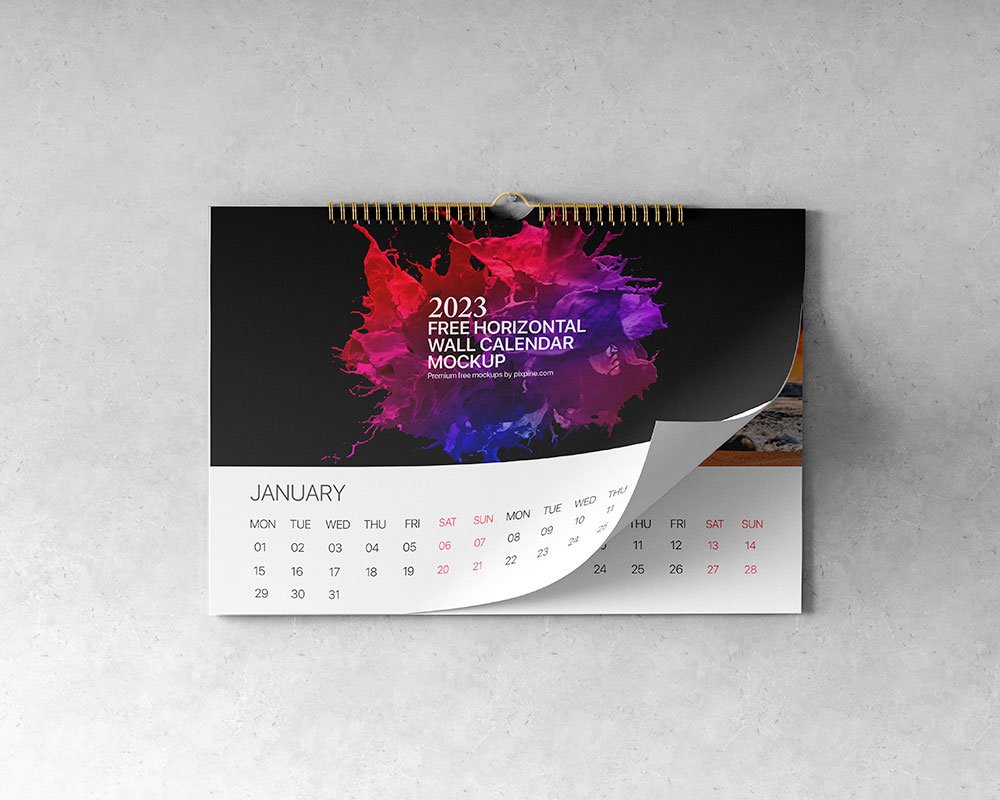
This wall horizontal calendar mockup is a quick way to show a yearly calendar without a photo shoot.
Useful for print shops as much as for photographers. Tip: if the paper has texture, drop the opacity of your art by a few percent so the grain shows through.
Print jobs are expensive to redo, so a realistic preview before the order goes out is cheap insurance.
Good for
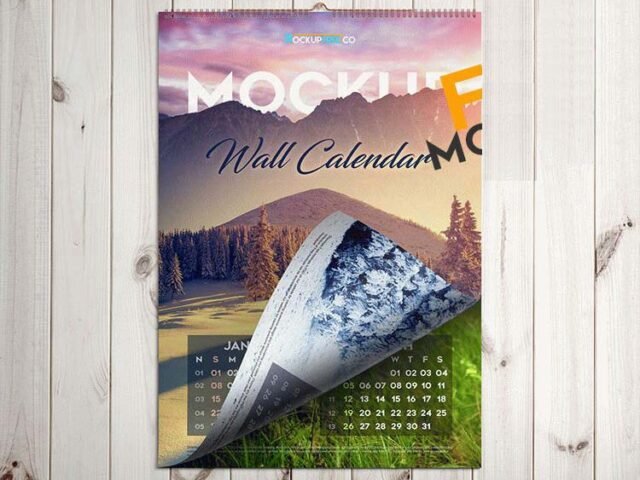
- A yearly calendar
- A corporate gift calendar
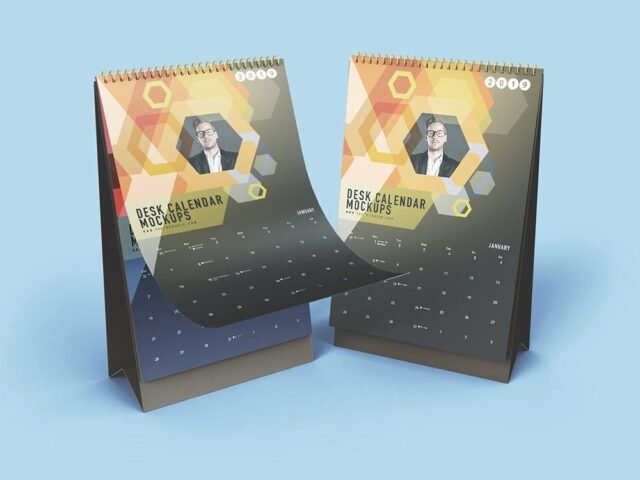
- A desk calendar
Pixpine created this one and hosts the download on their own site, so you always get the latest version straight from the source.
Wall Horizontal Calendar Mockup: editable parts
The PSD is layered, so you can change:
- Your design, placed through the smart object
- Paper texture you can turn up or down
- Front and back artwork, where both sides are shown
- Shadows and highlights on their own layers
How to edit this Wall Horizontal Calendar Mockup in Photoshop
- Set up the design flat at the real print size and keep text inside a safe margin.
- Open the PSD in Photoshop and find the smart object layer, usually named “Your Design” or “Place Here”.
- Place your design, hide the sample artwork, save, and go back to the main file.
- Turn the texture layer up or down to match the paper you’ll print on.
- Save a JPG for clients and social media, and keep the PSD for later changes.
One more thing: export your artwork at the size the smart object asks for; scaling a small file up is the usual reason print mockups look soft.
Ways to use this Wall Horizontal Calendar Mockup
- Show a corporate gift calendar to a client before it goes to print or production.
- Present a desk calendar in a client proposal or brand guide.
- Share a yearly calendar on Instagram, Behance or Dribbble with a real-looking preview.
Good to know
- Made by Pixpine. The download size and format are listed on their page.
- Check the licence on the author’s page. Personal and commercial terms differ from file to file.
- The preview shows the angle, background and lighting you’ll get.
Scroll down for similar calendar mockups from other designers.
Questions about this mockup
What licence does it come with?
Pixpine sets the licence, and it can differ from file to file. Many free files allow personal and commercial use, but some are personal-only or ask for credit. Read the terms on the download page before a paid project.
How do I add my design?
Open the file in Photoshop, double-click the smart object thumbnail, paste or place your artwork in the new tab, save it (Ctrl/Cmd + S) and close. The main file updates on its own.
Do I need Photoshop?
Yes. This is a PSD mockup built with smart objects, so you edit it in Adobe Photoshop. Any recent CC version works.
Will my artwork look printed or pasted on?
Most print mockups keep the paper texture and lighting on separate layers above your design, so it takes on the grain and shadows. If it still looks too clean, lower the opacity of your artwork a little.