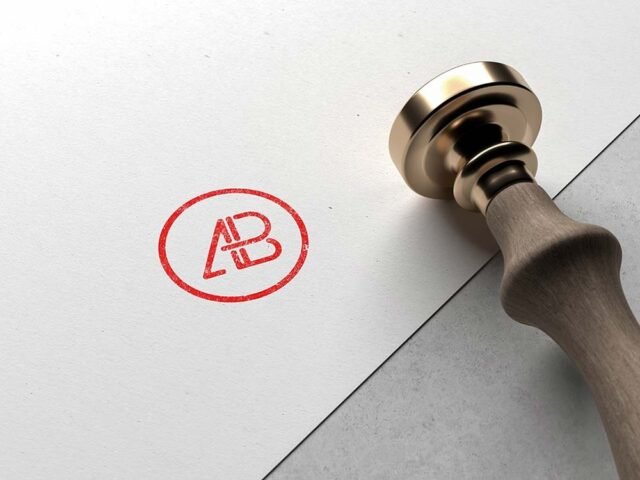
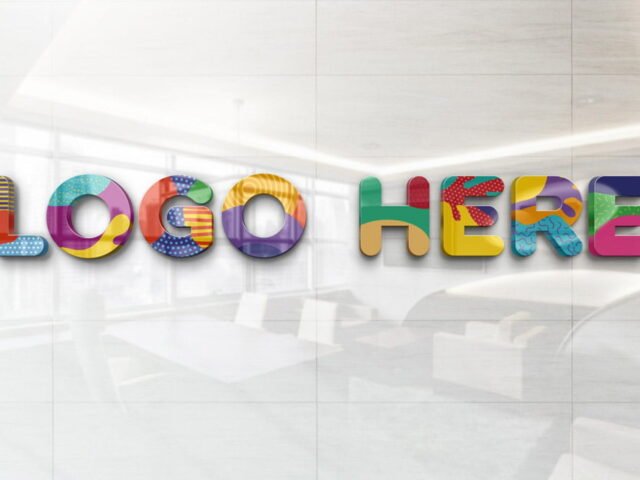
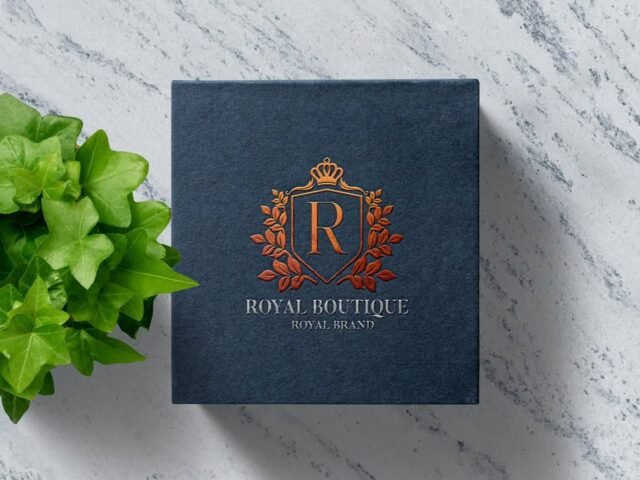
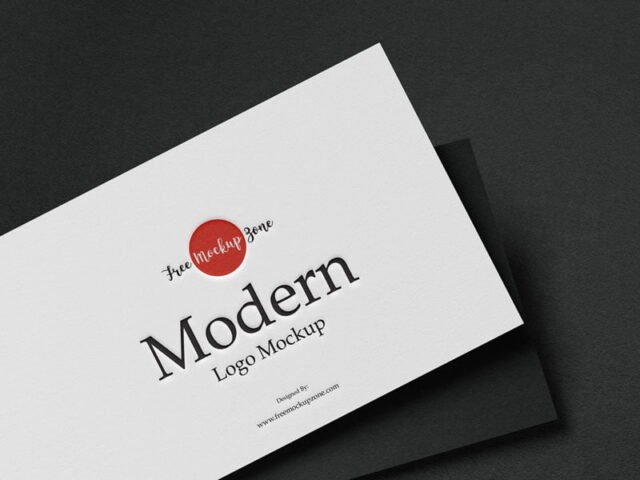
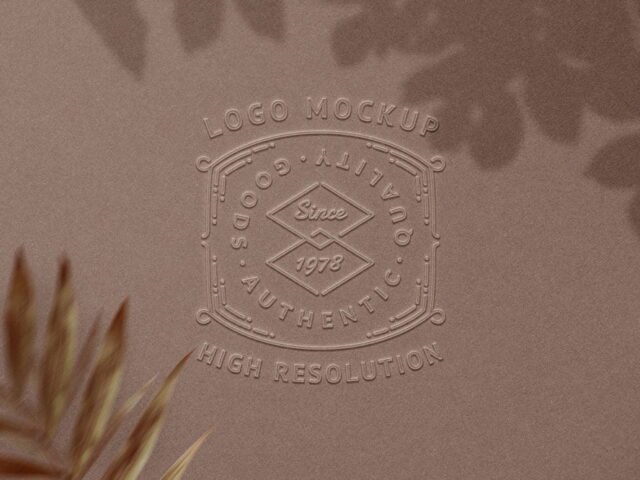
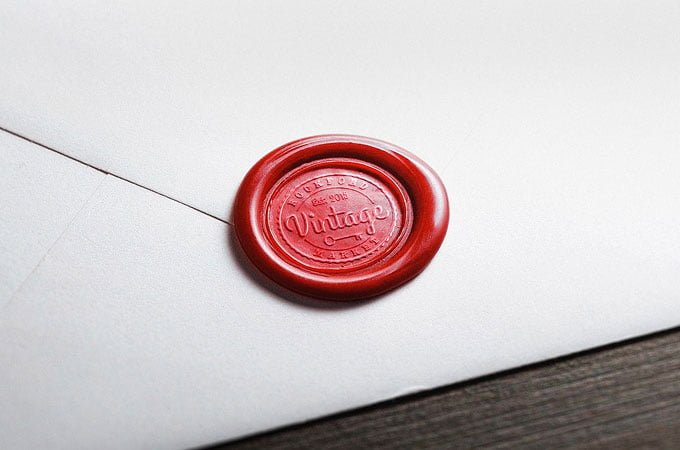
Wax Seal Logo Mockup
What's inside
- Applications Photoshop
- File Types PSD
- License Free (see author's terms)
- Author Pixelbuddha
If you’re presenting a brand mark reveal, this wax seal logo mockup makes the idea feel real before anything is produced.
Good pick for branding studios, logo designers or anyone putting together a portfolio. A small tip: single-colour versions of a logo usually look better in embossed or foil effects than full-colour ones.
A logo on its own is hard to judge; seeing it pressed, printed or lit on a real surface tells the client far more.
Good for
- A brand mark reveal
- A signage concept
- A new logo
The file is made by Pixelbuddha. The download button takes you to their page, where you get the original file and the licence details.
What’s inside the Wax Seal Logo Mockup PSD
Everything below is on its own layer:
- Your design, placed through the smart object
- Front and back artwork, where both sides are shown
- Shadows and highlights on their own layers
- Paper or background colour
How to edit this Wax Seal Logo Mockup in Photoshop
- Get your artwork ready at print size, with 1/8 inch of bleed if it runs to the edge.
- Open the file in Photoshop and double-click the smart object thumbnail in the Layers panel.
- Drop your artwork in, fit it to the canvas, save and close. The mockup updates by itself.
- Change the background or paper colour with the colour layer.
- Export with File › Export › Export As: JPG for sharing, PNG for the web.
Another tip: if the paper has texture, drop the opacity of your art by a few percent so the grain shows through.
Ways to use this Wax Seal Logo Mockup
- Show a brand mark reveal to a client before it goes to print or production.
- Share a new logo on Instagram, Behance or Dribbble with a real-looking preview.
- Use it as the cover image for a signage concept in your portfolio.
Good to know
- Made by Pixelbuddha. The download size and format are listed on their page.
- The preview shows the angle, background and lighting you’ll get.
- Some free mockups ask for credit when you post them. A short line in your caption is enough.
- Check the licence on the author’s page. Personal and commercial terms differ from file to file.
Need a different angle? The logo mockups category has plenty more free PSD files.
Questions about this mockup
Can I use this logo mockup for client work?
Pixelbuddha sets the licence, and it can differ from file to file. Many free files allow personal and commercial use, but some are personal-only or ask for credit. Read the terms on the download page before a paid project.
How do I add my design?
Open the file in Photoshop, double-click the smart object thumbnail, paste or place your artwork in the new tab, save it (Ctrl/Cmd + S) and close. The main file updates on its own.
Do I need Photoshop?
Yes. This is a PSD mockup built with smart objects, so you edit it in Adobe Photoshop. Any recent CC version works.
Can I show both sides?
It depends on the file. Many print mockups include a front and a back smart object; the preview usually shows whether both sides are visible.