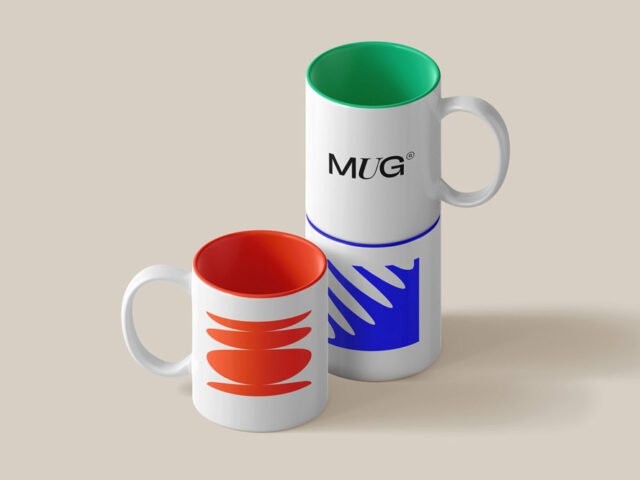
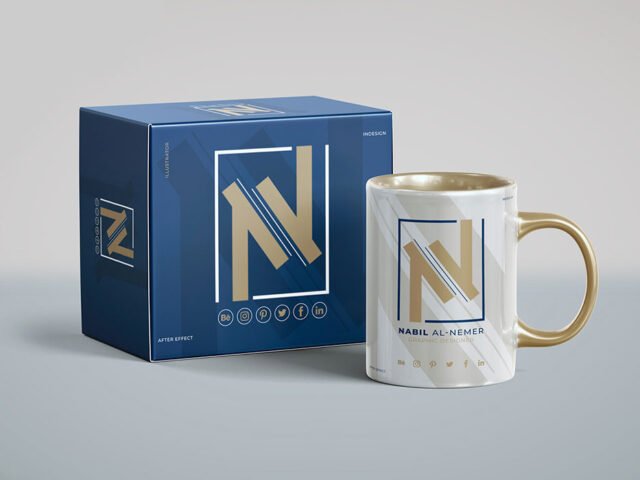
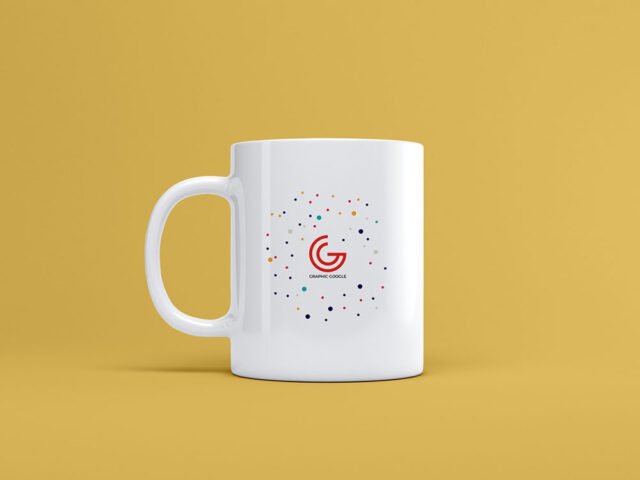
Tea Mug Mockup
What's inside
- Applications Photoshop
- File Types PSD
- License Free (see author's terms)
- Author Pixeden
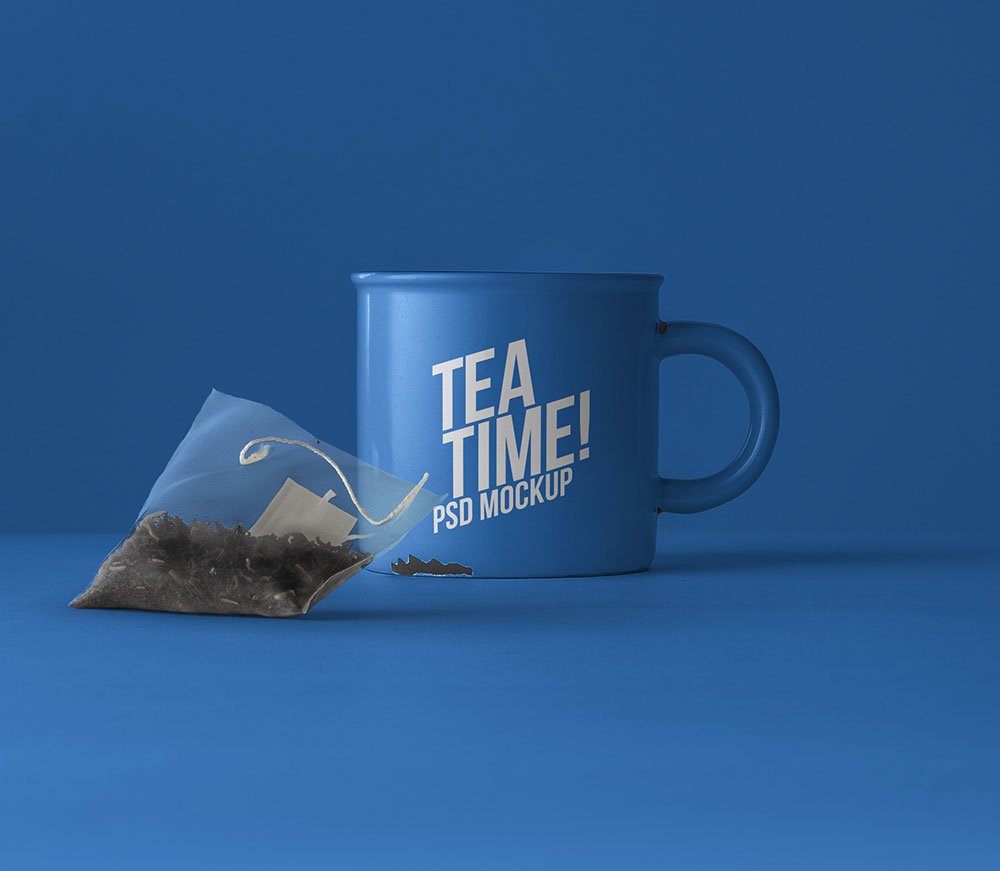
This tea mug mockup is one of the simpler ways to present a company logo or an illustration convincingly.
Useful for corporate merch teams as much as for gift shops. Cups are curved, so keep the logo compact and centred on the visible side.
Cafés and coffee brands use renders like this for menus, social posts and supplier pitches. Pair it with a coffee bag or menu mockup for a complete café presentation.
Credit goes to Pixeden. We link to their download page rather than re-uploading the file, so check their terms there before commercial use.
Tea Mug Mockup: editable parts
The PSD is layered, so you can change:
- Logo or pattern, placed through the smart object
- Background colour
- Highlights on the curve
- Cup, lid or sleeve colour
Add your design to the Tea Mug Mockup
- Centre your design on the side that faces the viewer.
- Open the file in Photoshop and double-click the smart object thumbnail in the Layers panel.
- Drop your artwork in, fit it to the canvas, save and close. The mockup updates by itself.
- Change the cup, lid or sleeve colour.
- Export with File › Export › Export As: JPG for sharing, PNG for the web.
Another tip: mug prints wrap around; if the preview shows one side, keep the design centred on that side.
Ways to use this Tea Mug Mockup
- Share a company logo on Instagram, Behance or Dribbble with a real-looking preview.
- Present an illustration in a client proposal or brand guide.
- Use it as the cover image for a quote print in your portfolio.
Quick notes on this mockup
- Made by Pixeden. The download size and format are listed on their page.
- The preview shows the angle, background and lighting you’ll get.
- Built for Adobe Photoshop. A recent CC version handles the smart objects best.
Need a different angle? The mug mockups category has plenty more free PSD files.
Questions about this mockup
Can I use this mug mockup for client work?
Pixeden sets the licence, and it can differ from file to file. Many free files allow personal and commercial use, but some are personal-only or ask for credit. Read the terms on the download page before a paid project.
How do I add my design?
Open the file in Photoshop, double-click the smart object thumbnail, paste or place your artwork in the new tab, save it (Ctrl/Cmd + S) and close. The main file updates on its own.
Which Photoshop version do I need?
A recent Photoshop CC version is best. Older versions can open the file but sometimes have trouble with smart objects and effects.
Will my logo follow the curve?
Curved-surface mockups use a warp or displacement so the print bends with the cup. Keep key text in the middle, where the curve distorts it least.